Are Phone Cleaner Apps Safe on iPhone?
Most iPhone cleaner apps are safe — but a few upload your photos or hide steep subscription fees. Here's a practical framework for checking privacy labels, data practices, and pricing before you install.
Photo by Roomier.
Most iPhone cleaner apps are safe to use — but the category has a handful of genuine risks: apps that upload your photos to remote servers, subscriptions that quietly compound to over $250 per year, and tools that delete files without asking you to review them first. Knowing what to check before you install takes about three minutes and eliminates almost all of the risk.
What "safe" actually means for a cleaner app
Safety for a phone cleaner app breaks into three separate questions:
- Privacy — does the app process your photos on your device, or does it send them to a server?
- Financial — is the pricing model transparent, and does it auto-renew at a rate you'd actually agree to?
- Data integrity — can you recover anything the app deletes, and does it ask before deleting?
These risks are independent. An app can be completely private but financially predatory, or inexpensive but cavalier about deletion. Evaluate each one separately.
How to check an iPhone cleaner app's privacy before installing
Step 1: Read the App Store Privacy Nutrition Label
Apple requires every app in the App Store to disclose what data it collects and whether that data is linked to your identity. To find it:
- Open the App Store and search for the app.
- Scroll down to the App Privacy section.
- Look for "Data Linked to You" — this is the most important row.
A photo cleaner that processes images on-device should show nothing (or very little) under "Photos" in the "Data Linked to You" column. If you see photos, contacts, or location listed there, the app is sending that data to its own servers. That's not automatically a dealbreaker — some apps use cloud AI — but you should make that choice consciously, not by accident.
Apple's own explanation of these labels is available at support.apple.com/privacy.
Step 2: Check the app's privacy policy for photo storage
The privacy nutrition label summarises; the privacy policy details. Look specifically for language about:
- Photo uploads — does the policy say images are transmitted to the developer's servers for processing?
- Retention — if photos are uploaded, how long are they kept?
- Third-party sharing — are images shared with advertising or analytics partners?
An on-device cleaner's privacy policy should say something close to: "All processing happens locally on your device. Your photos are never transmitted to our servers." If you can't find a clear statement, treat it as a yellow flag.
Step 3: Check which network SDKs the app uses
This step is optional but thorough. Tools like Exodus Privacy (primarily Android) and App Store privacy labels together give a reasonable picture of third-party data flows. For iPhone, the App Store label is usually sufficient.
The subscription trap: what to look for before you pay
The App Store has seen a wave of cleaner apps that charge weekly subscriptions — sometimes $4.99–$9.99 per week. At $6.99/week, that's over $360 per year for an app you might use once a month. Apple requires developers to display subscription terms before purchase, but the display can be easy to miss.
Before subscribing to any cleaner app:
- Identify the billing period. Is it per week, per month, or per year? Weekly subscriptions compound fast.
- Check the free tier. A legitimate app lets you scan your library and see results before asking for payment. If the app asks for a subscription before showing you anything, that's a warning sign.
- Verify the cancellation path. You can always cancel any App Store subscription via Settings > [Your Name] > Subscriptions, regardless of the app's own interface.
For comparison, here's how billing periods affect annual cost at the same nominal price:
| Billing period | Stated price | Annual cost |
|---|---|---|
| Per week | $4.99/week | ~$259/year |
| Per month | $4.99/month | ~$60/year |
| Per year | $19.99/year | $19.99/year |
| Lifetime | one-time fee | one-time fee |
Always read the billing period, not just the number.
Does "on-device processing" actually protect your photos?
Yes — with an important nuance. When an app runs its scan entirely on your iPhone, your photos never leave the device. There's nothing for a server breach to expose, no retention policy to worry about, and no third-party AI vendor that might change its terms. The iOS Photos framework gives apps read access to your library; an on-device app reads images, does its analysis locally, and writes deletion requests back through the OS.
The nuance: "on-device" only applies to the cleaning logic. An app can run its photo analysis on-device while still sending your usage data, device identifiers, or in-app purchase receipts to third-party SDKs. Check the privacy label for analytics and advertising trackers separately from photo data.
Built-in iOS tools: when you don't need a third-party app at all
If your main concern is exact duplicate photos, iOS 16 and later includes a Duplicates album that merges identical images without any third-party app. Find it at Photos > Albums > Utilities > Duplicates, then tap Merge on any group.
For general storage recommendations, go to Settings > General > iPhone Storage. iOS will flag large attachments, unused apps, and duplicate photos directly. For many users, these two paths are entirely sufficient — no download required.
A third-party cleaner adds the most value when you need to review similar (but not identical) shots from a burst, find blurry photos, locate oversized videos, or clean up hundreds of screenshots at once. Those categories aren't covered by the built-in tools.
What to look for in a cleaner app that's safe to use
A trustworthy iPhone cleaner app should do all of the following:
- Show you everything before deleting anything. You should be able to review each photo or group and confirm before anything moves to Recently Deleted.
- Use the OS deletion path. On iPhone, deleted photos go to the Photos > Recently Deleted album and stay there for 30 days. An app that bypasses this safety net is a red flag.
- Protect favorites and edited photos. These should be excluded from automatic suggestions.
- Disclose its network SDKs clearly. Advertising and purchase SDKs are normal; photo-upload SDKs should be explained.
- Offer transparent pricing. Free tier with a clear upgrade path, not a paywall before you've seen a single result.
Limitations to keep in mind
Photo cleanup solves one specific problem. It won't recover space used by apps, the iOS system, or your Messages attachments. Compressing videos trades file size for quality — the trade-off is real and irreversible. No algorithm reliably picks the best frame from a burst every time; human review still matters. And cleaning your on-device library is separate from your iCloud storage: deleting a photo on your iPhone removes it from iCloud Photos too (they sync), but your iCloud plan size is set independently at appleid.apple.com.
A quick pre-install checklist
Before installing any iPhone cleaner app, run through this list:
- App Store Privacy label shows no "Photos" under "Data Linked to You"
- Privacy policy explicitly states on-device processing
- Subscription billing period is clearly stated (not just the price)
- Free tier lets you see scan results before paying
- App uses iOS Recently Deleted — not its own deletion system
- Favorites and edited photos are protected
If an app clears all six, it's a reasonable choice. If it fails two or more, look elsewhere.
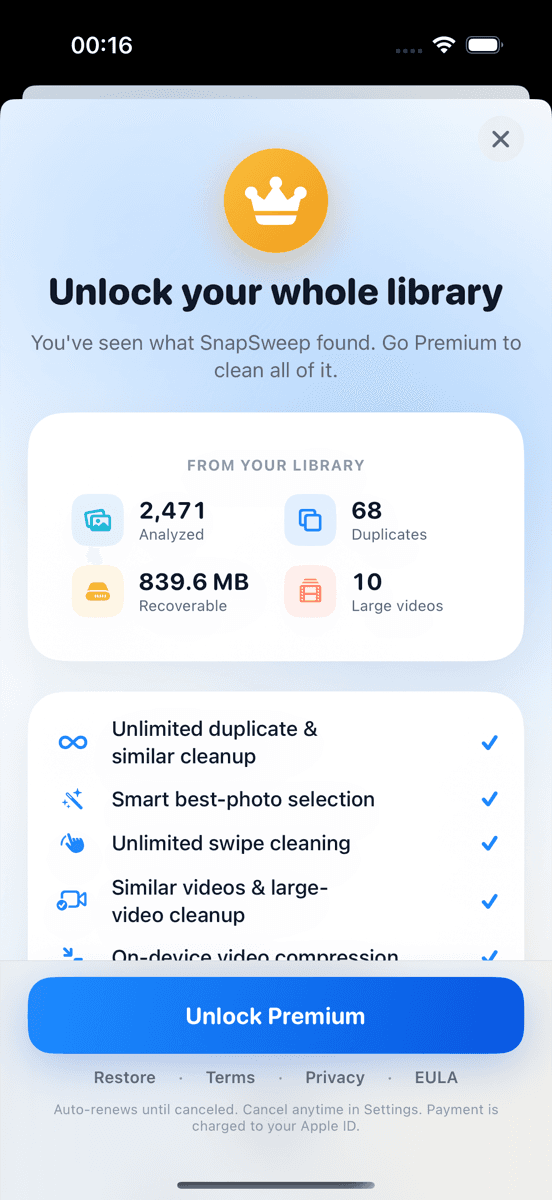
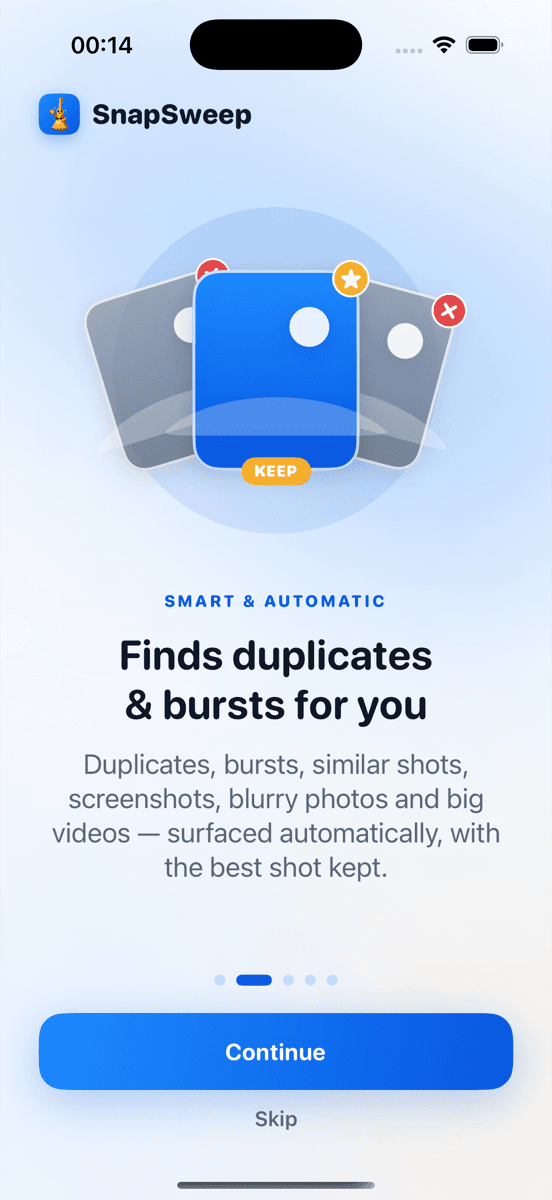
Roomier processes everything on-device — no photos leave your phone — and uses a swipe-by-swipe review before anything is queued for deletion. The free tier lets you scan your full library and delete up to eight items before you decide whether to upgrade. If you'd prefer a free option with no download, the built-in iOS Duplicates album (iOS 16+) handles exact duplicates without any third-party app.
Frequently asked questions
- Are iPhone cleaner apps safe to use?
- Most are safe, but check two things first: the App Store Privacy Nutrition Label (look for 'Data Linked to You — Photos') and the billing period. Apps that process photos on-device and use iOS's built-in Recently Deleted path carry minimal risk to your data or your wallet.
- Do cleaner apps upload your photos to their servers?
- Some do, some don't. On-device cleaners analyse your library entirely on your iPhone — nothing is transmitted. Check the App Store Privacy label before installing. If 'Photos' appears under 'Data Linked to You', the app is sending image data to external servers.
- How do I find a cleaner app's subscription price before I pay?
- The App Store must display subscription terms before purchase. Always check the billing period, not just the number — a $4.99/week subscription costs over $250 per year. You can cancel any App Store subscription via Settings > [Your Name] > Subscriptions at any time.
- Can I recover photos deleted by a cleaner app?
- Yes, if the app uses iOS's standard deletion path. Photos moved to Recently Deleted stay there for 30 days and can be restored in Photos > Albums > Recently Deleted. Avoid apps that claim to 'permanently delete' photos immediately — they bypass this safety net.
- Do I need a cleaner app at all, or will the built-in iPhone tools do?
- For exact duplicates, iOS 16+ includes a Duplicates album under Photos > Albums > Utilities that merges identical images for free. A third-party cleaner adds value mainly for similar burst shots, blurry photos, and oversized videos — categories the built-in tools don't cover.
- What does 'on-device processing' mean for a photo cleaner?
- It means the app's scan and analysis run entirely on your iPhone's processor. Your photos are never transmitted to the developer's servers. The app reads your library through the iOS Photos framework, performs its analysis locally, and sends deletion requests back through the OS.