What Is "Other" or System Data on Your iPhone?
The grey "Other/System Data" bar in iPhone storage can reach 10–20 GB. Here's what's inside it, which parts shrink on their own, and what you can actually do about it.
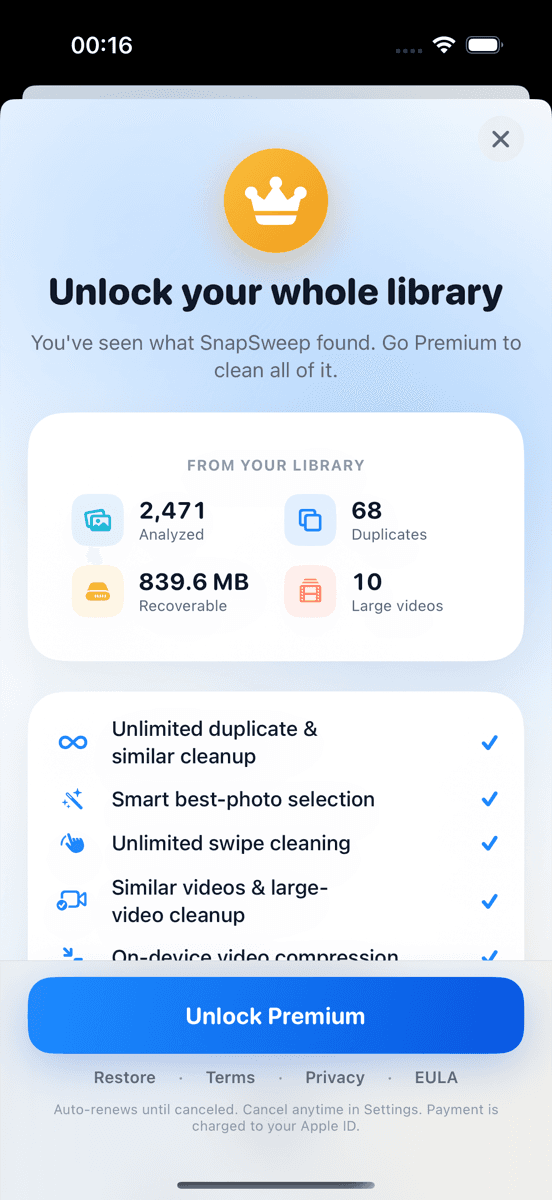
Photo by Roomier.
The grey bar labelled Other (iOS 15 and earlier) or System Data (iOS 16 and later) in iPhone storage settings is not a single file you can delete. It is a catch-all bucket for caches, logs, Siri voice models, on-device databases, and a handful of other items the OS accumulates over time. On a well-used iPhone it commonly sits between 5 GB and 20 GB. Most of it shrinks on its own when storage pressure rises; a smaller portion requires deliberate action.
The important thing to know upfront: your photos are tracked separately, under their own coloured bar. Cleaning your photo library will not reduce System Data — but it will reduce the much larger and more controllable Photos category.
How to See System Data on Your iPhone
Go to Settings > General > iPhone Storage. Wait a few seconds for the coloured bar chart to fully render at the top. The segments are labelled: Apps, Photos, iOS, System Data (and sometimes Media or Messages). Tap any segment for a sub-breakdown.
System Data does not have a drillable list of individual files. Apple intentionally hides the internals. What you see is a single number.
What Is Actually Inside System Data?
System Data bundles several distinct categories under one label. The main ones:
- App caches and temporary files. Streaming apps (music, podcasts, video) cache content locally. Browsers store page data, cookies, and cached images. These are the largest and most variable contributors.
- Siri voice models and on-device ML models. Downloaded language packs for Siri, Live Text, and on-device translation can each run 300 MB–1 GB depending on the language.
- System logs and crash reports. iOS writes diagnostic logs continuously. They are small individually but accumulate. iOS auto-purges old logs when storage is low.
- CloudKit and iCloud sync caches. Local metadata kept in sync with iCloud services — Contacts, Reminders, Notes, Photos metadata — lives here, not in the Photos bar.
- Mail caches. The Mail app caches message bodies and attachments locally. A large inbox with many attachments can add several gigabytes here.
- Safari website data. Cached pages, IndexedDB, localStorage, and cookies for every site you've visited. Can grow to 1–3 GB on a heavily used device.
- Spotlight and on-device search indexes. iOS indexes your messages, emails, and files so Spotlight can return results instantly. The index is typically a few hundred megabytes.
What System Data Does NOT Include
- Your photos and videos (those are in the Photos bar)
- Your app binaries and their documents/data (those are in the Apps bar)
- The iOS operating system itself (that is the iOS bar)
- Music, podcasts, or downloaded TV shows you explicitly saved (those appear in the Media bar)
Which Parts Shrink on Their Own?
iOS has a built-in storage pressure system. When free space drops below a threshold — roughly 1–2 GB — the OS automatically:
- Purges old system logs and crash reports
- Clears expired app caches (apps that haven't been opened recently)
- Removes Siri audio samples sent for grading (if you opted in)
- Offloads unused app data (distinct from offloading the app itself)
This means System Data often looks large on a phone with plenty of free space, then quietly shrinks when you actually need room. It is not "wasted" space in the same way a forgotten 4 GB video is.
What Requires Manual Action
Some System Data components will not self-clear:
Safari Website Data
Settings > Safari > Clear History and Website Data. This removes cached pages, cookies, and browsing history. Expect to be signed out of websites. On a heavily used device this can reclaim 1–2 GB.
Mail Cache
Delete large email threads or attachments from within the Mail app. Alternatively: Settings > Mail, then remove and re-add the account — this forces a fresh cache. Note that re-adding triggers a full re-sync.
Siri and Dictation Voice Models
Settings > Siri & Search > Siri Voice — if you downloaded an Enhanced voice, switching to a Compact voice frees 200–600 MB. You can also go to Settings > General > Language & Region and remove any downloaded translation languages you no longer use.
Streaming App Caches
Individual apps manage their own caches. For Spotify: Settings (in-app) > Storage > Clear Cache. For Podcasts: Settings > Podcasts > Downloaded Episodes — delete episodes you've finished. For third-party browsers: check in-app settings for a "Clear Cache" option.
Offload and Reinstall an App
Settings > General > iPhone Storage > [App Name] > Offload App removes the binary but keeps documents and data. Delete App removes everything including its cache. Reinstalling a fresh copy often results in a noticeably smaller footprint than the accumulated version.
A Realistic Expectation for How Much You Can Reclaim
Clearing Safari data and a few streaming caches typically recovers 1–3 GB. Removing unused Siri voices and translation packs might add another 500 MB–1 GB. Beyond that, the remaining System Data is largely managed by iOS itself and will fluctuate as the OS sees fit.
If your iPhone storage bar is still alarmingly full after these steps, the culprit is almost certainly Photos or Apps — not System Data. A single minute of 4K/60fps video can exceed 400 MB. A library of 10,000 photos, even at a conservative 3 MB each, is 30 GB. That is where the recoverable space usually lives.
Limitations of Any Cleanup Approach
A few honest caveats worth keeping in mind:
- Photo cleanup and system cleanup are separate problems. Deleting photos reduces the Photos bar, not System Data. Clearing Safari data reduces System Data, not Photos.
- iCloud and on-device storage are different. iCloud Photos stores originals in the cloud and keeps optimised thumbnails on-device. Even with iCloud Photos enabled, your on-device Photos bar will not be zero — thumbnails still occupy space.
- System Data will grow back. Caches exist because they make the phone faster. Clearing them is not a permanent fix; the data rebuilds as you use the apps.
- No app can directly delete System Data. iOS does not expose system caches to third-party apps. Any app claiming to "clean" system data is either running the same manual steps described above or misrepresenting what it does.
- Apps and system data are outside the scope of photo cleaners. A photo library cleaner — including Roomier — works on the Photos bar only: duplicate shots, blurry photos, large videos, and screenshots. It cannot touch caches, logs, or Siri models.
When Your Photos Bar Is the Real Problem
If you have worked through the System Data steps and the storage gauge is still in the red, open Settings > General > iPhone Storage and look at the Photos bar specifically. Apple's built-in tool at Photos > Albums > Utilities > Duplicates (available on iOS 16 and later) merges exact duplicates automatically — no third-party app needed. Apple's support page on the Duplicates album explains the merge process clearly.
For clutter that the Duplicates album misses — near-identical burst shots, blurry frames, redundant screenshots, and oversized videos — a dedicated photo cleaner lets you review and remove those categories one by one. That review step matters: no algorithm reliably picks the right frame from a burst, so swipe-by-swipe confirmation before deletion is worth the extra minute.
If you want to tackle your photo library after sorting out System Data, Roomier scans everything on-device and shows you exactly how much space each category of clutter is holding.
Frequently asked questions
- What is System Data on iPhone storage?
- System Data (called 'Other' in iOS 15 and earlier) is a catch-all bar in iPhone storage settings that includes app caches, Safari website data, Siri voice models, system logs, and iCloud sync metadata. It is not a single file and cannot be deleted all at once.
- How do I reduce System Data on my iPhone?
- Clear Safari website data at Settings > Safari > Clear History and Website Data, delete streaming app caches from within each app, remove unused Siri voice packs at Settings > Siri & Search > Siri Voice, and offload or reinstall apps with large cached footprints. Expect to recover 1–3 GB total.
- Why is System Data so large on my iPhone?
- System Data grows as you use your phone — browsers cache pages, streaming apps buffer content, and iOS writes logs continuously. It is often large on phones with plenty of free space because iOS only auto-purges caches when storage pressure rises. A 5–15 GB figure is common on a well-used device.
- Does deleting photos reduce System Data?
- No. Photos are tracked in a separate bar in iPhone storage settings. Deleting photos reduces the Photos bar, not System Data. The two categories are independent; you need different steps to address each one.
- Will System Data shrink on its own?
- Partly, yes. iOS automatically purges old logs, expired caches, and unused app data when free storage drops below roughly 1–2 GB. However, Safari data, Siri voice models, and Mail caches do not self-clear and require manual action.
- Can a third-party app delete iPhone System Data?
- No. iOS does not give third-party apps access to system caches or logs. Apps that claim to 'clean' system data are either running the same manual steps you can do yourself in Settings, or overstating what they can do. Photo cleaners work on the Photos bar only.