Does iCloud Photos Free Up iPhone Storage?
Turning on iCloud Photos doesn't automatically free up space. Learn how Optimize iPhone Storage works, when it actually reclaims space, and what it leaves behind.
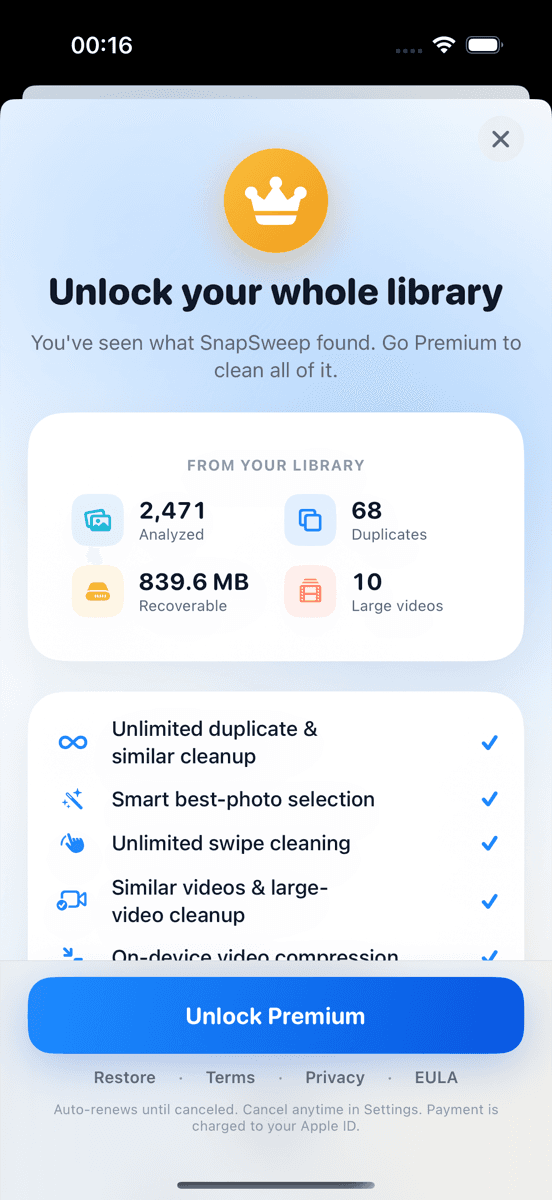
Photo by Roomier.
Syncing your photos to iCloud does not automatically free up space on your iPhone. Space is only reclaimed if you also enable Optimize iPhone Storage — and even then, iOS decides when and how much local data to replace with smaller previews. If your iPhone is still full after turning on iCloud Photos, that's why.
What iCloud Photos Actually Does
iCloud Photos is a sync service, not a storage-reclamation tool. When you turn it on, every photo and video in your library is uploaded to Apple's servers and kept in sync across your devices. The full-resolution originals remain on your iPhone unless you take one more step.
There are two storage modes, found at Settings > [Your Name] > iCloud > Photos:
- Download and Keep Originals — full-resolution files stay on the device. iCloud is a backup copy. Your local storage usage does not change.
- Optimize iPhone Storage — iOS may replace full-resolution files with smaller device-optimized versions when storage runs low. The originals stay in iCloud and re-download on demand.
The key word is may. iOS applies its own algorithm to decide which originals to swap out. If your iPhone has plenty of free space, it may not optimize anything for weeks.
How "Optimize iPhone Storage" Actually Works
When this toggle is on, iOS monitors available free space and gradually replaces large originals — especially older videos and high-resolution photos — with lightweight thumbnails or compressed previews. Tapping a photo re-downloads the full file over Wi-Fi or cellular.
A few things worth knowing:
- iOS controls the timing. There is no button to force optimization immediately. Apple's support page on iCloud Photos confirms iOS manages this automatically based on available storage.
- Videos benefit most. A minute of 4K/60fps footage can exceed 400 MB. A compressed preview of the same clip is a fraction of that. Photos are typically 2–5 MB each (HEIF) or 4–8 MB (JPEG), so the savings per photo are smaller.
- Recently taken photos stay local longer. iOS prioritizes keeping your most recent shots in full resolution, which means a phone full of recent photos may see little benefit right away.
- iCloud storage is separate from iPhone storage. Uploading 50 GB of photos to iCloud consumes your iCloud plan's quota — it does not reduce what's counted under Settings > General > iPhone Storage.
When iCloud Photos Is Enough
If your library is large and mostly older content, enabling Optimize iPhone Storage and waiting a few days often reclaims meaningful space — sometimes several gigabytes. This is the right first move, and it costs nothing beyond whatever iCloud plan you already have.
Check your progress at Settings > General > iPhone Storage. The bar chart at the top updates as iOS offloads originals. If Photos shrinks noticeably over 24–72 hours, iCloud is doing its job.
For many users, this is enough. You don't need a third-party app if iCloud optimization brings your storage to a comfortable level.
Why Your iPhone Storage Can Still Be Full After Enabling iCloud Photos
Several scenarios leave you stuck even with Optimize Storage turned on:
1. Your library contains a lot of duplicate and near-duplicate photos
iCloud syncs and optimizes whatever is in your library — including every duplicate. If you have 3,000 burst shots, 800 near-identical landscape tries, and years of forwarded WhatsApp screenshots, iCloud faithfully stores all of them. Optimization shrinks their local footprint slightly, but the clutter remains.
2. Videos dominate your library
Even optimized video previews take up space. And if you've shot a lot of recent 4K footage, iOS may not have offloaded those originals yet.
3. Apps and system data are the real culprit
Photos might not be the problem at all. At Settings > General > iPhone Storage, scroll past the bar chart to see a per-app breakdown. Streaming apps, games, and cached data from messaging apps often consume more space than your photo library. iCloud Photos does nothing for those.
4. You're using "Download and Keep Originals"
This is easy to overlook. If the toggle was ever set to Download Originals — perhaps when restoring from a backup — all full-resolution files are local and iCloud optimization is off.
iCloud vs. Actually Deleting Photos: What's the Difference?
Syncing to iCloud and deleting photos are fundamentally different operations:
| Action | Local space freed | iCloud space freed |
|---|---|---|
| Enable iCloud Photos (Optimize) | Gradually, iOS-controlled | No |
| Delete a photo (iCloud Photos on) | Yes, after 30-day Recently Deleted | Yes, after 30-day Recently Deleted |
| Delete a photo (iCloud Photos off) | Yes, after 30-day Recently Deleted | N/A |
Deleting is the only guaranteed way to reclaim space. When iCloud Photos is enabled, a deletion removes the photo from every synced device and from iCloud — after the 30-day Recently Deleted window expires. Deleted photos sit in Photos > Albums > Recently Deleted for 30 days before space is permanently freed. You can empty it manually at any time.
What a Duplicate Cleaner Adds That iCloud Doesn't
iCloud Photos has no concept of "these three shots are near-identical — keep one." It stores them all. The iOS 16+ Duplicates album (found at Photos > Albums > Utilities > Duplicates) catches exact or near-exact matches and offers a one-tap Merge — a solid free option worth trying first.
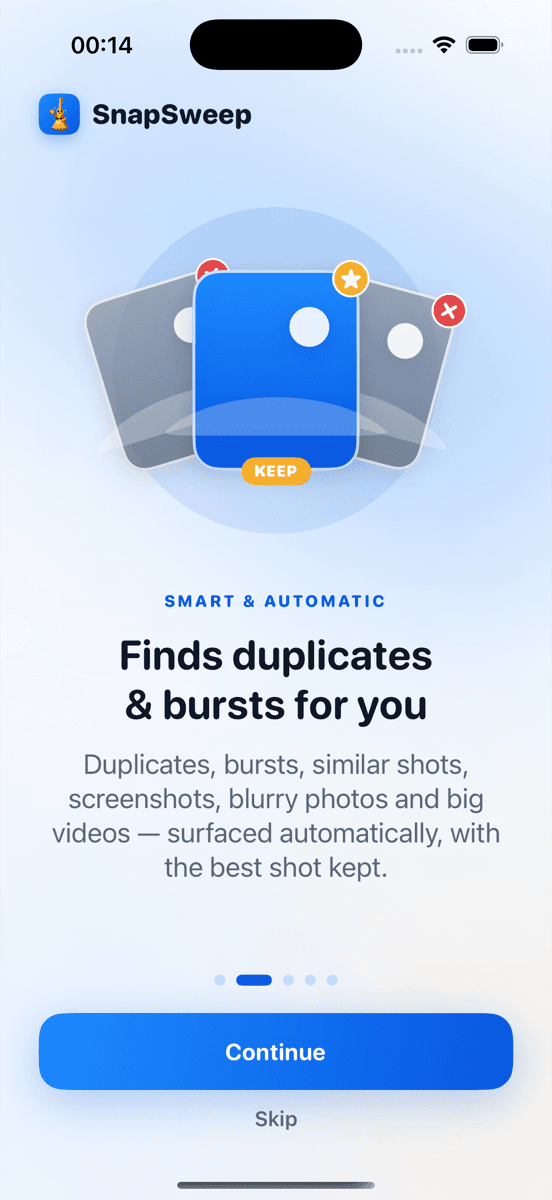
Where the built-in tool has limits: it doesn't surface blurry shots, over-exposed frames within a burst, or screenshots you've long forgotten. Apps like Roomier scan the full library on-device, group similar shots by category, and let you swipe through each group to decide what stays — without auto-deleting anything. Everything runs locally; no photos leave the device.
If the iOS Duplicates album clears your backlog, you're done. If your library has years of burst sequences and forgotten screenshots, a dedicated cleaner can find recoverable space that iCloud optimization never touches.
Limitations Worth Knowing
- iCloud optimization is not instant. Expect hours to days, not minutes.
- Compression is lossy in some contexts. Re-encoding videos to reclaim space trades some quality for size.
- No algorithm picks the right burst frame every time. Always review before deleting.
- iCloud and on-device cleanup are separate problems. Cleaning your iPhone library also cleans iCloud (when Photos sync is on), but your iCloud quota is a separate question from your device's free storage.
- Photo cleanup can't recover space used by apps or system data. Check the per-app list in iPhone Storage before assuming photos are the bottleneck.
The fastest path: enable Optimize iPhone Storage, wait 48 hours, and check Settings > General > iPhone Storage again. If Photos has shrunk and you're comfortable, you're done. If the library is still bloated with duplicates and clutter iCloud can't distinguish from keepers, that's the gap a library cleaner is built to fill.
Frequently asked questions
- If I sync photos to iCloud, will it free up space on my iPhone?
- Not automatically. Syncing uploads your photos but keeps originals on the device by default. To reclaim local space, you must also enable Optimize iPhone Storage at Settings > [Your Name] > iCloud > Photos. Even then, iOS controls when originals are replaced with smaller previews — it can take days.
- Why is my iPhone storage still full after turning on iCloud Photos?
- iCloud Photos optimizes storage gradually based on iOS's own algorithm, not immediately. Your library may also contain duplicates, burst shots, or screenshots that iCloud stores faithfully without removing. Apps and system data are another common culprit — check Settings > General > iPhone Storage for a per-app breakdown.
- What does Optimize iPhone Storage actually do?
- It allows iOS to replace full-resolution photos and videos with smaller device-optimized versions when storage is low. The originals remain in iCloud and re-download when you open them. iOS decides which files to swap out — you can't trigger it manually. Videos benefit most; a minute of 4K/60fps footage can exceed 400 MB.
- Does deleting photos free up more space than iCloud optimization?
- Yes. Deleting is the only guaranteed way to permanently reclaim storage. With iCloud Photos enabled, a deleted photo is removed from all synced devices and iCloud after the 30-day Recently Deleted window. Optimization only shrinks local copies — the files still exist and still count against your iCloud quota.
- Does the iOS Duplicates album work with iCloud Photos?
- Yes. The Duplicates album (Photos > Albums > Utilities > Duplicates, requires iOS 16+) finds exact and near-exact matches and lets you merge them. It works whether or not iCloud Photos is on. It's a free, built-in tool and the right first step before trying any third-party cleaner.
- Can I free up space without deleting any photos?
- To a degree. Enabling Optimize iPhone Storage lets iOS replace originals with smaller previews locally while keeping full files in iCloud. For videos, you can also re-encode large files at a lower resolution. But if your library is genuinely large, some deletion is usually necessary to make a meaningful dent in storage.