Does Merging Duplicates Actually Free Up Storage?
Merging duplicates on iPhone can save real space, but Recently Deleted delays the reclaim by up to 30 days. Here's the exact storage math and how to speed it up.
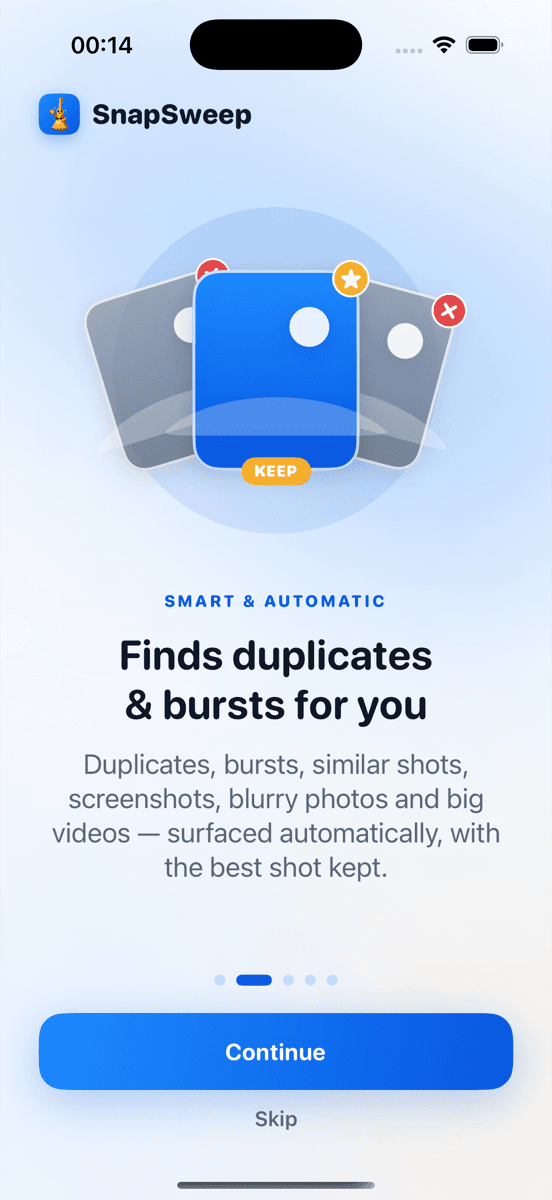
Photo by Roomier.
Merging duplicates does free up storage — but not always right away. iOS moves merged copies to the Recently Deleted album, where they sit for up to 30 days before the space is reclaimed automatically. If your storage bar looks unchanged after a merge, that delay is almost certainly the reason.
Why Merging Duplicates Doesn't Always Show Immediate Space Savings
When you tap Merge in the iOS Photos Duplicates album, the app keeps one copy (the highest-quality version) and moves the extras to Recently Deleted. The space those extras occupied is not returned to "Available" storage until the files are permanently deleted — either automatically after 30 days, or manually right now.
This is the same behavior as any other photo deletion on iOS. It's a deliberate safety net, not a bug.
The practical consequence: if you merged 200 duplicate photos averaging 4 MB each, that's roughly 800 MB sitting in Recently Deleted, still counted against your used storage. Your Settings > General > iPhone Storage bar will not reflect the gain until the album is cleared.
How to Reclaim the Space Immediately
- Open Photos.
- Tap Albums at the bottom.
- Scroll to Utilities and tap Recently Deleted.
- Tap Select, then Delete All (or select specific items).
- Confirm the permanent deletion when prompted.
After this, wait 60–90 seconds and recheck Settings > General > iPhone Storage — the number should drop.
On Android, the path is similar: open Google Photos, tap your Library, then Trash, and select Empty Trash. Samsung Gallery users can find the equivalent under More > Trash > Empty.
The Storage Math Behind Duplicate Photos
A typical iPhone photo shot in HEIF/HEIC format runs 2–5 MB. A photo shot in ProRAW can reach 25–75 MB. A burst sequence of 10 shots at 4 MB each totals 40 MB — but only one of those frames is usually the one you'd actually print or share.
Duplicate photos accumulate from several sources:
- iCloud sync conflicts — the same image downloaded twice under slightly different filenames.
- Messaging apps — WhatsApp, iMessage, and Instagram all save incoming photos to your library if auto-save is enabled.
- Burst mode — holding the shutter generates dozens of near-identical frames.
- Screenshot repetition — taking multiple screenshots of the same screen before editing.
- Manual backups — importing from a camera or computer without checking for overlaps.
None of these are rare. A library of 10,000 photos commonly contains 800–1,500 near-duplicates, though exact figures vary by usage pattern.
When the Built-In iOS Duplicates Tool Is Enough
iOS 16 introduced a native Duplicates album at Photos > Albums > Utilities > Duplicates. It finds exact and near-exact matches using on-device machine learning and lets you merge them in one tap. For most people with a tidy library, this tool is genuinely sufficient. You don't need a third-party app to handle straightforward exact duplicates.
Apple's support page on the Duplicates album explains how the merge logic works: it retains the highest-resolution version and combines metadata (favorites, captions, albums) from all copies before deleting the rest.
The built-in tool is enough if:
- Your duplicates are exact matches (same file, same resolution).
- You're comfortable with the 30-day Recently Deleted delay or are willing to empty it manually.
- Your library is under roughly 5,000–8,000 photos.
Where the Built-In Tool Falls Short
The native Duplicates album has real limitations worth knowing before you rely on it exclusively.
It misses similar-but-not-identical shots. Burst sequences, bracketed exposures, and photos taken seconds apart with slightly different framing are not flagged as duplicates — even if you'd never keep more than one. These "near-duplicates" are often a larger source of wasted space than exact duplicates.
It doesn't surface blurry or poorly exposed frames. You might have 30 photos from a birthday dinner, and half of them are motion-blurred or underexposed. The Duplicates album won't touch those.
It doesn't quantify recoverable space by category. You see a list of duplicate groups, but not a clear "you could recover X GB" summary broken down by type.
Android has no native equivalent. Google Photos has a storage manager that flags blurry and screenshot-heavy content, but there is no dedicated Duplicates merge flow on Android as of late 2025.
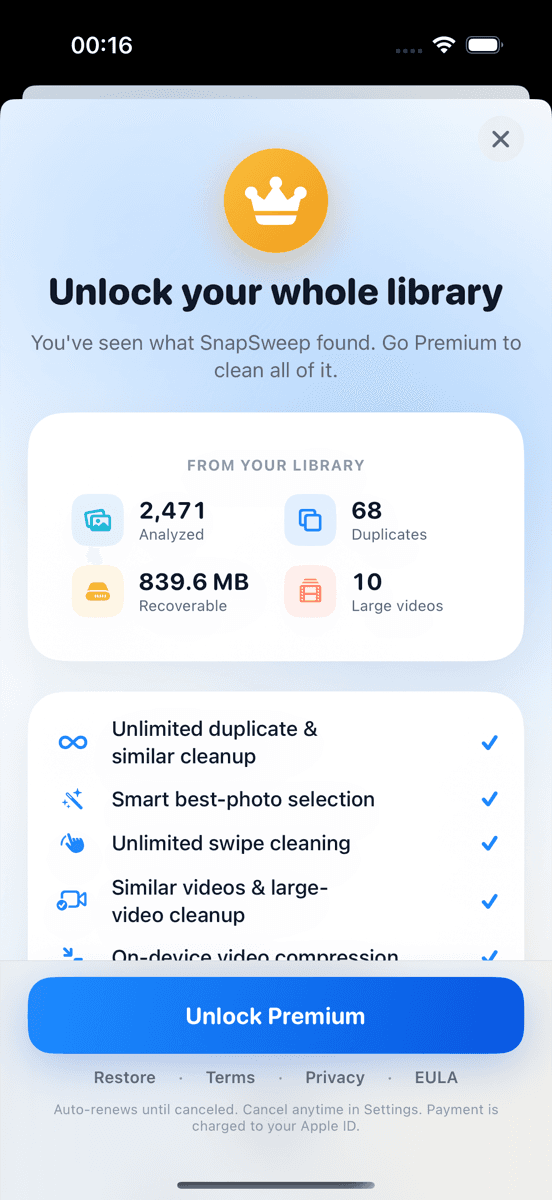
A third-party cleaner closes these gaps by scanning for similar shots, blurry frames, and large videos in one pass — then letting you review every decision before anything is deleted. Roomier does this on-device (no photos leave your phone) and groups results by category with a recoverable-space estimate per group. Files by Google is a free alternative worth checking on Android for basic cleanup.
Why Your iPhone Storage Might Still Look Full After Merging
There are a few reasons the storage bar stays stubbornly high even after a thorough duplicate merge:
- Recently Deleted hasn't been emptied. This is the most common cause. See the steps above.
- iCloud Photos is still syncing. If iCloud Photos is enabled, iOS may be in the middle of reconciling changes. Give it 10–15 minutes and recheck.
- App data and caches are the real culprit. Photo cleanup only addresses the Photos library. Apps, system data, and offline content (podcasts, downloaded maps, streaming caches) are separate. Check Settings > General > iPhone Storage and look at the per-app breakdown — often a single app (Spotify, Google Maps, a game) holds more data than your entire duplicate photo collection.
- Videos are dominating the library. A single minute of 4K/60fps video can exceed 400 MB. Even a thorough duplicate photo cleanup will barely register if you have 30 GB of video. Compressing or deleting large videos has a far larger impact per item than removing photos.
- The OS storage bar updates slowly. iOS caches storage calculations. Force-close Settings and reopen it, or restart the device, to see the updated figure.
Limitations to Keep in Mind
Photo cleanup has a defined scope. It cannot recover space used by apps, system software, or cached data. Video compression is lossy — re-encoding a video at a lower bitrate is permanent and trades file size for quality. No algorithm reliably picks the "right" frame from a burst sequence every time; human review matters. And cleaning your on-device library is a separate problem from managing your iCloud or Google Photos cloud quota — the two storage pools are billed and tracked independently.
The Practical Checklist
Before concluding that merging duplicates didn't work, run through this in order:
- Empty Recently Deleted (Photos > Albums > Utilities > Recently Deleted > Delete All)
- Wait 60–90 seconds, then recheck Settings > General > iPhone Storage
- Check whether large videos — not photos — are the dominant storage consumer
- Review per-app storage in Settings > General > iPhone Storage for caches
- If similar shots and blurry frames are still cluttering the library, consider a dedicated scanner
If you've done all of the above and your library still feels bloated, a scan that covers near-duplicates, blurry shots, and large videos in one pass will show you exactly how much more is recoverable — before you commit to deleting anything.
Frequently asked questions
- Does merging duplicates on iPhone actually free up storage?
- Yes, but not instantly. Merging duplicates moves the extra copies to Recently Deleted, where they count against your storage for up to 30 days. To reclaim the space immediately, go to Photos > Albums > Utilities > Recently Deleted and tap Delete All.
- Why is my iPhone storage still full after merging duplicates?
- The most common reason is that Recently Deleted hasn't been emptied. Merged photos sit there for 30 days before being auto-deleted. Other causes: large video files, app caches, or iCloud sync still in progress. Check Settings > General > iPhone Storage for a per-app breakdown.
- How long does Recently Deleted hold photos before freeing space?
- iOS keeps deleted photos in Recently Deleted for 30 days, after which they are permanently removed and the storage is reclaimed automatically. You can bypass the wait by opening Recently Deleted and tapping Select > Delete All at any time.
- Does the iOS Duplicates album catch all duplicate photos?
- No. The native Duplicates album (Photos > Albums > Utilities > Duplicates) finds exact and near-exact matches, but it misses burst sequences, similar shots taken seconds apart, blurry frames, and poorly exposed photos. Those require manual review or a dedicated scanner.
- How much space can duplicate photos actually take up?
- It varies widely. A typical HEIF photo is 2–5 MB; a burst sequence of 10 shots at 4 MB each uses 40 MB. Libraries of 10,000+ photos commonly contain hundreds of near-duplicates. Large videos are usually a bigger storage drain — a minute of 4K/60fps can exceed 400 MB.
- Is there a native duplicate photo tool on Android?
- Android has no built-in duplicate merge feature equivalent to iOS 16's Duplicates album. Google Photos includes a storage manager that flags blurry and screenshot-heavy content, but not a dedicated duplicate finder. Files by Google offers basic cleanup on Android.