How to Delete Photos Safely: A Complete Checklist
Follow this 7-step checklist to delete photos safely: check favorites, verify edited originals, keep one duplicate from each group, and empty trash last to avoid permanent loss.
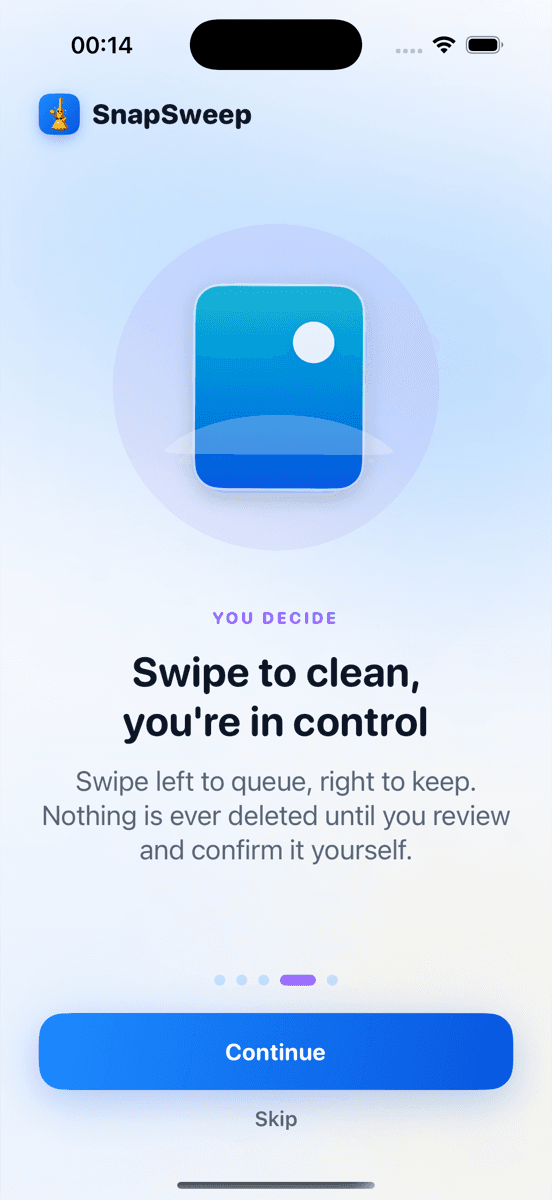
Photo by Roomier.
Deleting photos safely means following a systematic approach that protects your favorites, preserves edited originals, and gives you multiple chances to recover deleted items. This checklist ensures you avoid the most common photo deletion mistakes that lead to permanent loss.
Check Your Favorites and Albums First
Before deleting any photos, review your Favorites album and any custom albums you've created. Both iOS and Android protect favorited photos in different ways, but it's worth double-checking.
On iPhone, open Photos > Albums > Favorites to see all starred photos. On Android, the process varies by manufacturer — Samsung Gallery uses a heart icon, while Google Photos uses a star. Favorited photos typically won't appear in cleanup suggestions, but manual deletion can still remove them.
Custom albums don't always protect photos from deletion. When you delete a photo from your main library, it may disappear from albums too, depending on your device. Review important albums before starting any cleanup.
Verify Edited Photos and Live Photos
Edited photos deserve special attention. When you edit a photo on iPhone or Android, the system usually keeps both the original and edited version. Deleting carelessly can remove either version permanently.
On iPhone, edited photos show an "Edit" badge in the corner. Tap the photo, then Edit to see if you can revert to the original. If you see "Revert," the original exists. If you see "Done," you're viewing the original.
Android handling varies by app. Google Photos keeps edit history for photos edited within the app — tap a photo, then the edit icon to see if previous versions exist. Samsung Gallery and other manufacturer apps have different behaviors.
Live Photos on iPhone contain both a still image and video component. Deleting a Live Photo removes both parts. Check if any Live Photos contain moments you want to preserve as regular photos first.
Handle Duplicates Carefully
Duplicate photos are prime deletion candidates, but avoid deleting wrong photos requires keeping one copy from each group.
iOS 16 and later includes a built-in duplicates album: Photos > Albums > Utilities > Duplicates. Tap "Merge" to keep the highest quality version automatically. This handles exact duplicates safely but misses similar shots from burst sequences.
Android users can check Files by Google's Clean tab for duplicate suggestions, though coverage varies. Samsung Gallery includes a "Similar images" feature under More options.
For manual duplicate cleanup:
- Compare image quality before deleting
- Keep the version with better lighting or composition
- Check file sizes — larger usually means higher resolution
- Preserve photos with different edit states
Review Screenshots and Downloads Systematically
Screenshots accumulate quickly and often contain temporary information that's safe to delete. However, some screenshots preserve important information like receipts, addresses, or conversations.
Create a systematic review process:
- Sort screenshots by date to identify old, likely obsolete ones
- Check for text content that might be important later
- Look for screenshots of important documents or confirmations
- Delete obvious temporary captures (memes, quick shares, error messages)
Downloaded images from messaging apps or web browsers often duplicate photos you already have. Check Downloads or similar folders in your gallery app.
Use the 30-Day Safety Net
Both iOS and Android provide a Recently Deleted folder that holds deleted photos for 30 days before permanent removal. This is your primary safety mechanism.
On iPhone: Photos > Albums > Recently Deleted shows all deleted photos with days remaining. Tap "Select" then "Recover" to restore photos, or "Delete All" to remove them permanently.
On Android, the location varies by manufacturer:
- Google Photos: Trash folder in the Library tab
- Samsung Gallery: Recycle bin in More options
- Other apps: Look for Trash, Bin, or Recently Deleted sections
Photos in these folders still count toward your storage usage until permanently deleted. Don't rush to empty them — wait the full 30 days unless you need the space immediately.
Back Up Before Major Cleanups
For large-scale photo deletion projects, create a backup first. This provides protection beyond the 30-day recovery window.
Free backup options include:
- iCloud Photos (5GB free, then paid)
- Google Photos (15GB free across Google services)
- OneDrive (5GB free with Microsoft account)
- Dropbox (2GB free)
External storage works too — transfer photos to a computer or external drive before deleting from your phone. This is especially important for photos older than 30 days that won't have Recently Deleted protection.
Start Small and Review Results
Begin photo cleanup with obvious candidates rather than borderline cases. Delete a small batch, check the Recently Deleted folder, and confirm the results match your expectations.
Good starting categories:
- Clear duplicates where you can easily identify the better version
- Screenshots of temporary information (old weather forecasts, expired promotions)
- Blurry photos where you have sharp alternatives
- Test photos taken while learning camera settings
Avoid deleting:
- Photos where you're uncertain about duplicates in other albums
- Images that might be referenced by other apps
- Photos from important events, even if they seem redundant
Review Your Cleanup Tools
Built-in phone tools handle exact duplicates well but miss similar photos, burst sequences, and other cleanup opportunities. Third-party apps can find additional clutter but require careful evaluation.
Free options like Files by Google work for basic Android cleanup. iPhone users get the Duplicates album and storage recommendations in Settings > General > iPhone Storage.
Apps like Roomier provide more comprehensive scanning — finding similar burst shots, blurry photos, and large videos that built-in tools miss. These apps typically show you everything before deletion and work entirely on-device for privacy.
Be cautious of apps that auto-delete without review, charge weekly subscriptions, or require uploading your photos to their servers.
What Photo Cleanup Can't Fix
Photo deletion has important limitations that affect how much storage you'll actually recover.
Storage breakdown varies significantly by user. Apps, system data, and cached files often consume more space than photos. A 64GB iPhone might have 40GB of apps and system files, making photo cleanup less impactful than expected.
iCloud Photos and Google Photos cloud storage are separate from local phone storage. Deleting photos from your phone doesn't free cloud storage unless you also delete them from the cloud service.
Some apps create their own photo copies that don't appear in your main gallery. Social media apps, camera apps, and editing apps may store additional copies that require separate cleanup.
Video compression can reduce file sizes dramatically but involves quality loss. A 4K video that's 400MB might compress to 100MB, but you can't reverse the process to get the original quality back.
Common Photo Deletion Mistakes to Avoid
Several categories of photo cleanup mistakes lead to permanent loss:
Weekly subscription apps can cost over $250 annually while providing minimal value beyond free alternatives. Always check billing terms and cancel subscriptions you don't actively use.
Auto-deletion features bypass human review and often remove photos you wanted to keep. Disable automatic cleanup features unless you understand exactly what they target.
Cleaning photos without checking other devices can create sync issues. If you use iCloud Photos or Google Photos across multiple devices, deletions sync everywhere unless you disable the feature first.
Emptying Recently Deleted immediately removes your safety net. Unless you desperately need the storage space, wait the full 30 days before permanent deletion.
The safest approach to photo cleanup combines built-in tools for obvious duplicates with careful manual review for everything else. Take time to understand what you're deleting, use the 30-day recovery period as intended, and back up irreplaceable photos before major cleanup projects."
Frequently asked questions
- How long do deleted photos stay in Recently Deleted on iPhone?
- Deleted photos remain in iPhone's Recently Deleted album for 30 days before permanent removal. You can recover them anytime during this period by opening Photos > Albums > Recently Deleted > Select > Recover.
- Can I recover photos deleted more than 30 days ago?
- Photos deleted more than 30 days ago are permanently removed from your device. Recovery requires a backup from iCloud, iTunes, or third-party backup services created before the deletion date.
- Do favorited photos get deleted when I clean my photo library?
- Favorited photos are protected from automatic cleanup tools but can still be manually deleted. Always check your Favorites album before major cleanup projects to ensure important photos are properly marked.
- What's the difference between deleting photos locally vs from iCloud?
- Deleting photos locally removes them from your device but keeps cloud copies if iCloud Photos is enabled. To free cloud storage, delete photos from iCloud Photos directly, which removes them from all synced devices.
- Should I empty Recently Deleted to free up storage space?
- Only empty Recently Deleted if you desperately need storage space immediately. Photos in Recently Deleted still count toward storage usage but provide a 30-day safety net for recovery mistakes.
- Are third-party photo cleanup apps safe to use?
- Reputable apps that work on-device and require manual review before deletion are generally safe. Avoid apps that auto-delete, require uploading photos to servers, or charge expensive weekly subscriptions.