Do Live Photos Take Up More Storage? The Real Storage Cost
Live Photos use 2-3x more storage than regular photos because they capture a 3-second video clip alongside the still image. Here's how to manage them without losing your photos.
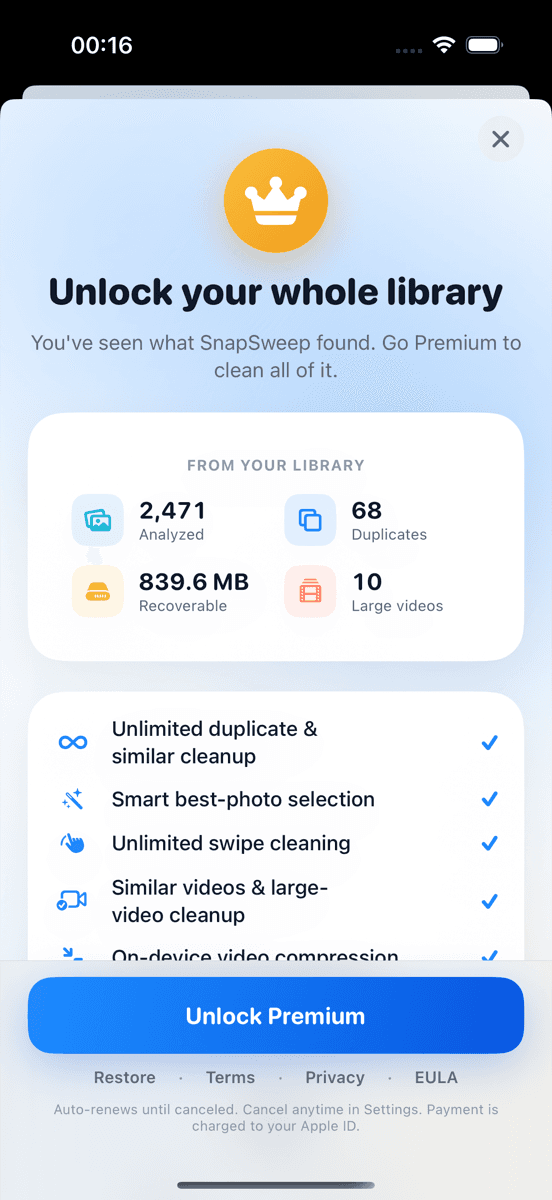
Photo by Roomier.
Live Photos consume 2-3 times more storage than regular photos because each one contains both a still image and a 3-second video clip. A typical Live Photo uses 6-12 MB compared to 2-4 MB for a standard photo, making them a significant factor when iPhone storage fills up.
How Much Storage Do Live Photos Actually Use?
Live Photos store two components: the main still image (2-4 MB in HEIF format) plus a 3-second MOV video file (4-8 MB). The exact multiplier depends on scene complexity and motion, but expect Live Photos to use 2.5-3x more space than equivalent still photos.
For reference:
- Regular iPhone photo: 2-4 MB
- Live Photo: 6-12 MB
- 4K video (1 minute): 350-400 MB
The storage impact compounds quickly. If you take 100 Live Photos during a vacation, that's roughly 800 MB to 1.2 GB compared to 300 MB for regular photos — nearly a full gigabyte of extra storage.
Turn Off Live Photos to Save Future Storage
The fastest solution is disabling Live Photos for new captures. This doesn't affect existing Live Photos but prevents future storage bloat.
On iPhone:
- Open Camera app
- Tap the Live Photos icon (concentric circles) in the top toolbar
- Select "Off" — the icon turns white with a slash through it
- Live Photos stays disabled until you manually re-enable it
Alternative method:
- Open Settings > Camera
- Toggle off "Use Live Photos"
- This makes "Off" the default for new camera sessions
The setting persists between camera launches, so you won't accidentally create more Live Photos unless you deliberately turn it back on.
Convert Existing Live Photos Without Losing Images
You have several options to reclaim storage from existing Live Photos while keeping the still images.
Use iPhone's Built-in Conversion
The Photos app includes a simple conversion tool:
- Open Photos app
- Select a Live Photo
- Tap "Edit" in the top-right corner
- Tap the Live Photos icon (now in the edit toolbar)
- Select "Still" instead of "Live"
- Tap "Done"
This keeps the still image and discards the video component. The converted photo retains its original capture date and location data.
Batch Conversion Through Shortcuts
For multiple Live Photos, use the Shortcuts app:
- Open Shortcuts app
- Tap "+" to create a new shortcut
- Add "Select Photos" action
- Add "Convert Live Photo to Still" action
- Add "Save to Photo Album" action
- Run the shortcut and select multiple Live Photos
This method processes dozens of Live Photos at once without manual editing.
Third-Party Cleanup Apps
Apps like Roomier can identify Live Photos during storage scans and let you review them alongside other space-consuming content. The app shows storage breakdowns by category, making it easier to spot how much space Live Photos consume relative to duplicates, screenshots, or large videos.
Files by Google on Android offers similar batch management for motion photos (Android's equivalent to Live Photos).
When to Keep Live Photos vs Convert Them
Live Photos work best for specific scenarios:
Keep as Live Photos:
- Action shots (kids playing, pets moving)
- Candid moments where the 3-second context adds value
- Photos you plan to use in video projects
- Memories where the motion enhances the story
Convert to still images:
- Landscape photography
- Group photos where everyone is stationary
- Screenshots or document photos
- Any photo where the motion adds nothing meaningful
Review your Live Photos periodically. Many capture static scenes where the video component provides no additional value but still consumes storage.
Alternative: Use iCloud Photos Optimization
If you use iCloud Photos, enable "Optimize iPhone Storage" to keep full-resolution Live Photos in the cloud while storing smaller versions locally:
- Open Settings > Photos
- Select "Optimize iPhone Storage"
- Full Live Photos remain accessible but don't consume local storage
This approach maintains all Live Photos functionality while reducing on-device storage pressure. The trade-off is requiring internet access to view full-resolution versions.
Storage Management Beyond Live Photos
Live Photos are just one storage factor. A comprehensive cleanup addresses multiple categories:
- Duplicate photos: iOS 16+ includes a Duplicates album under Photos > Albums > Utilities for exact matches
- Similar burst shots: Require third-party apps since iOS doesn't group near-duplicates
- Large videos: Check Settings > General > iPhone Storage for video-heavy apps
- Screenshots: Often forgotten but accumulate quickly in the photo library
The built-in iPhone Storage recommendations (Settings > General > iPhone Storage) suggest app-specific cleanups but don't analyze photo library content beyond basic duplicates.
Limitations of Photo Cleanup
Photo management has inherent constraints regardless of your approach:
Converting Live Photos is permanent — you can't restore the video component later. Cloud storage optimization requires reliable internet access. No automated system perfectly identifies which photos matter most to you.
Photo cleanup also can't address storage used by apps, system data, or cached content. A 64GB iPhone running low on storage may need app management alongside photo cleanup.
Third-party cleanup apps process photos locally but can't access iCloud Photos directly — cloud and device storage are separate problems requiring different solutions.
Ready to analyze your photo library's storage usage? Roomier provides detailed breakdowns showing exactly how much space different photo types consume, helping you make informed cleanup decisions.
Frequently asked questions
- Do Live Photos really use twice as much storage?
- Live Photos typically use 2-3 times more storage than regular photos because they contain both a still image (2-4 MB) and a 3-second video clip (4-8 MB), totaling 6-12 MB per Live Photo.
- Can I turn off Live Photos without losing existing ones?
- Yes, disabling Live Photos in the Camera app only affects new photos. Existing Live Photos remain unchanged until you manually convert them to still images through the Photos app.
- What happens when I convert a Live Photo to still?
- Converting removes the 3-second video component but keeps the still image with all original metadata like date, location, and camera settings. The conversion is permanent and cannot be undone.
- Do Live Photos sync to iCloud and use cloud storage?
- Yes, Live Photos sync to iCloud Photos if enabled, using cloud storage for both the image and video components. You can optimize local storage while keeping full versions in iCloud.
- Can Android phones create Live Photos?
- Android phones create "Motion Photos" or "Moving Pictures" which work similarly to Live Photos, capturing a short video alongside the still image and using comparable storage space.
- Is there a way to batch convert multiple Live Photos at once?
- Yes, use the iPhone Shortcuts app to create a workflow that converts multiple Live Photos to still images simultaneously, or use third-party apps that offer batch conversion features.