Screen Recordings Are Probably Your Biggest Files
Screen recordings can consume 100+ MB per minute while photos average 2-5 MB each. Here's how to find and delete screen recordings hogging your iPhone or Android storage.
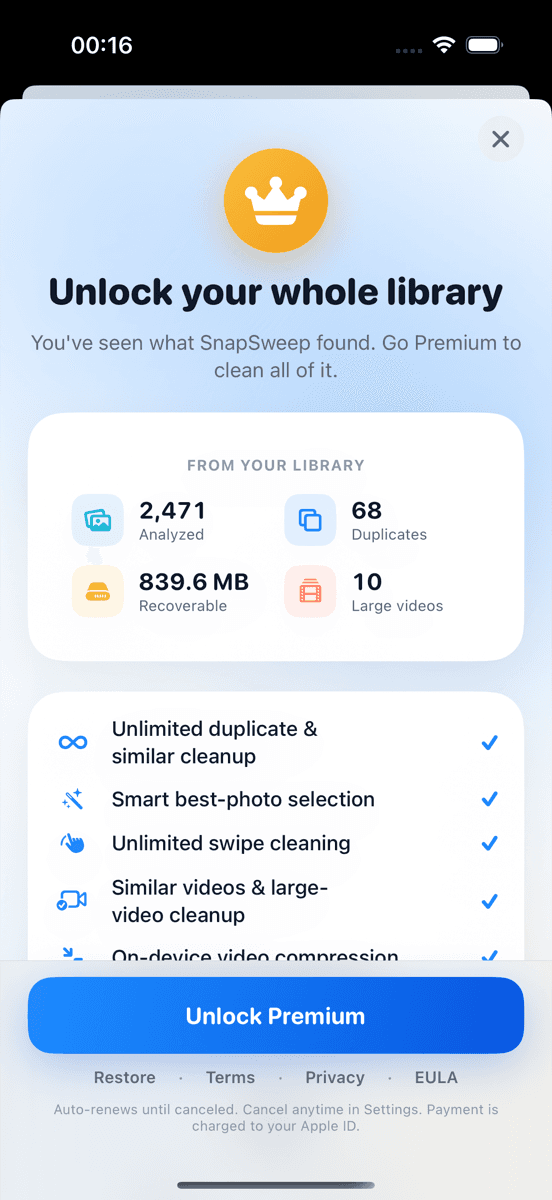
Photo by Roomier.
Screen recordings consume vastly more storage than photos. A single minute of screen recording typically uses 50-100+ MB, while a photo averages 2-5 MB. If you've recorded gameplay, tutorials, or video calls, these files likely dominate your storage usage.
Why Screen Recordings Are Storage Hogs
Screen recordings capture every pixel change at high frame rates. Your phone records at full resolution — often 1080p or higher — at 30-60 frames per second. The bitrate needed to maintain quality creates massive files.
A 5-minute screen recording can exceed 500 MB. That's equivalent to 100-250 typical photos. Most people forget about screen recordings after capturing them, letting these giants accumulate.
The math is stark:
- Standard photo: 2-5 MB
- 4K photo: 8-12 MB
- One minute of screen recording: 50-150 MB
- Five-minute tutorial recording: 250-750 MB
How to Find Screen Recordings on iPhone
iOS groups screen recordings with regular videos, making them harder to spot. Here's how to locate them:
Method 1: Photos App Search
- Open Photos
- Tap the Search tab
- Type "screen recording"
- Review results and tap individual files to see their size
Method 2: Settings Storage Breakdown
- Go to Settings > General > iPhone Storage
- Tap Photos
- Look for "Videos" — screen recordings count here
- Tap "Review Large Attachments" to see biggest files first
Method 3: Files App
- Open Files
- Navigate to On My iPhone > DCIM
- Sort by size (largest first)
- Screen recordings typically appear at the top
The built-in Photos app's Duplicates album won't catch screen recordings since they're rarely exact duplicates. You need manual review or a third-party cleaner.
Finding Screen Recordings on Android
Android's approach varies by manufacturer, but core methods work across devices:
Files by Google (Recommended)
- Open Files by Google
- Tap Clean tab
- Select "Large files"
- Filter by Videos
- Screen recordings appear with "Screen_" prefix typically
Gallery Apps
- Open your default Gallery
- Navigate to Videos folder
- Sort by file size or date
- Look for files named "Screen_recording_" or similar
Settings Storage
- Go to Settings > Device care > Storage (Samsung)
- Tap Videos
- Sort by size to find largest files
Samsung Gallery includes a storage cleanup feature that can identify large video files, though it won't specifically flag screen recordings.
When Built-In Tools Are Enough
For exact duplicates of any video type, iOS 16+ handles this automatically. The Photos app's Duplicates album (Albums > Utilities > Duplicates) finds identical screen recordings and lets you merge them.
Files by Google's Clean tab effectively surfaces large videos on Android. If you only have a few screen recordings, these free built-in options handle the job.
Screen Recording File Formats and Compression
iPhones save screen recordings as .mov files using H.264 encoding. Android devices typically use .mp4 with H.264 or H.265 (HEVC) compression. The high bitrates needed for smooth playback create the storage problem.
Some key technical details:
- Screen recordings maintain source resolution (often 1080p+)
- Frame rates match your display (30-60 fps)
- Bitrates range from 8-20 Mbps for quality preservation
- Audio adds additional overhead when recorded
Compression can reduce file sizes by 50-70%, but introduces quality loss. The trade-off depends on whether you'll rewatch the content.
Third-Party Cleanup Options
Apps like Roomier scan your entire photo library and categorize large videos separately from photos. This makes screen recordings easier to identify and review before deletion.
Clever Cleaner offers similar functionality on iPhone at no cost. Both apps let you review files before deletion rather than auto-removing content.
The advantage: batch processing and categorization. Instead of hunting through folders, you see all large videos grouped together with size information.
Limitations of Screen Recording Cleanup
Photo and video cleanup has inherent limits you should understand:
Storage Recovery Limits: Deleting screen recordings only recovers space from your photo library. App data, system files, and cached content require different cleanup approaches.
Compression Trade-offs: Re-encoding screen recordings reduces quality. Text and fine details suffer most. Consider whether you'll need the original quality before compressing.
Manual Review Required: No algorithm can determine which screen recordings you want to keep. That 2-minute recording might document an important bug or contain crucial information.
Cloud Sync Complexity: If you use iCloud Photos or Google Photos, deleting locally may not immediately free cloud storage. The sync process varies by platform and settings.
The Real Storage Impact
Screen recordings accumulate faster than most people realize. A few gaming sessions or tutorial captures can consume gigabytes. Unlike photos, which you might browse regularly, screen recordings often sit forgotten until storage runs low.
The solution isn't avoiding screen recordings — they're useful for support requests, sharing gameplay, and creating tutorials. The key is periodic cleanup of recordings you no longer need.
Start with the largest files first. A single 10-minute recording likely uses more space than hundreds of photos. Focus your cleanup efforts where they'll have maximum impact.
Most people discover they can delete 80%+ of their screen recordings without losing anything important. The storage recovery often exceeds what you'd gain from photo cleanup alone.
Frequently asked questions
- How much storage does a screen recording use?
- Screen recordings typically consume 50-150 MB per minute, depending on resolution and frame rate. A 5-minute recording can exceed 500 MB — equivalent to 100+ typical photos.
- Where are screen recordings stored on iPhone?
- iPhone screen recordings appear in the Photos app under Videos. You can find them by searching 'screen recording' in Photos or checking Settings > General > iPhone Storage > Photos.
- Can I compress screen recordings to save space?
- Yes, but compression reduces quality. Text and fine details suffer most. Consider whether you need original quality before compressing, as the process is typically irreversible.
- Do screen recordings sync to iCloud?
- Yes, if iCloud Photos is enabled, screen recordings sync like other videos. Deleting locally may not immediately free cloud storage due to sync delays and Recently Deleted folder.
- Why don't screen recordings appear in iPhone's Duplicates album?
- The Duplicates album only shows identical files. Screen recordings are rarely exact duplicates since they capture different content, even if the same app or game.
- What's the difference between screen recording cleanup and photo cleanup?
- Screen recordings are typically much larger individual files (50+ MB each) while photos average 2-5 MB. Deleting a few screen recordings often recovers more space than hundreds of photos.