iOS Duplicates Album vs Cleaner Apps: Which Finds More Photos?
iOS 16+'s built-in Duplicates album catches exact matches but misses similar burst shots, screenshots, and blurry photos that third-party cleaners find. Here's what each approach covers.
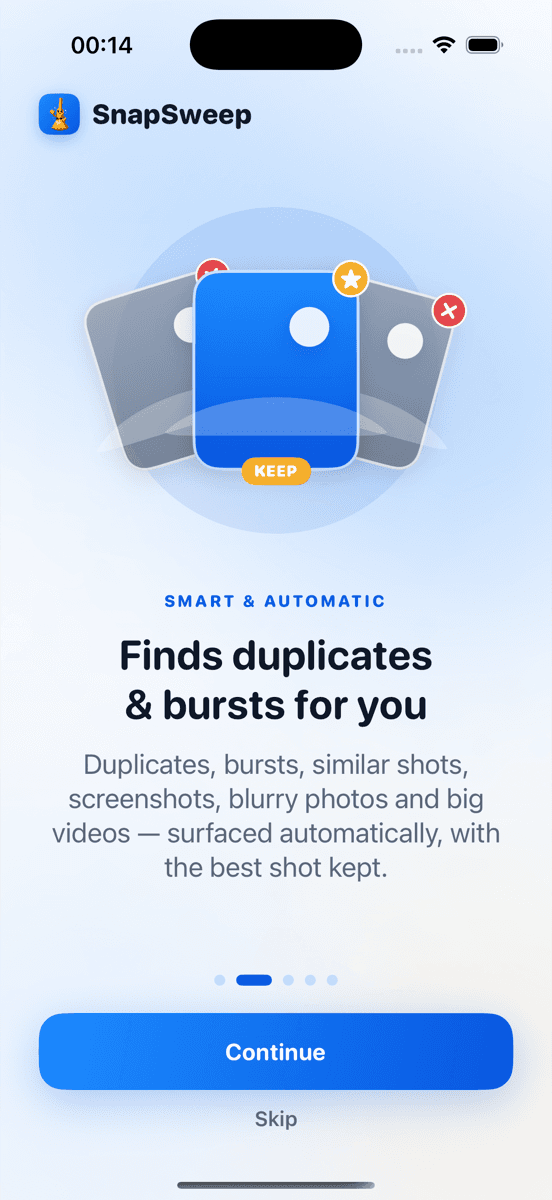
Photo by Roomier.
iOS 16 introduced a built-in Duplicates album in the Photos app that automatically finds and merges identical photos. For exact duplicates, this free solution works well and requires no third-party apps. However, it misses similar burst shots, duplicate screenshots, and near-identical photos that differ slightly in compression or editing — clutter that specialized cleaner apps can identify.
What the iOS Duplicates Album Actually Finds
The Duplicates album appears in Photos > Albums > Utilities when iOS detects identical image files. It groups photos that share the same pixel data, creation timestamp, or file hash. The "Merge" button keeps the highest-quality version and moves duplicates to Recently Deleted.
This works for:
- Photos imported multiple times from the same source
- Identical screenshots saved repeatedly
- Exact copies created when sharing between apps
- Photos duplicated during device transfers or backups
The algorithm is conservative by design. Apple prioritizes avoiding false positives over catching every possible duplicate.
Where Built-in Detection Falls Short
iOS's Duplicates album misses several common clutter categories that consume significant storage:
Similar burst shots: When you take 10 photos of the same scene in burst mode, iOS treats each as unique even if 9 are nearly identical. A 10-photo burst at 4 MB each consumes 40 MB, but you likely need only one or two shots.
Screenshot variations: Multiple screenshots of the same app or webpage with minor differences (different scroll positions, timestamps, or notification badges) aren't flagged as duplicates.
Compressed versions: If you edit a photo and save it as a new file, or if an app creates a compressed copy, iOS sees two distinct images despite similar content.
Cross-format duplicates: A photo saved in both HEIF and JPEG formats during sharing or export appears as separate files.
Blurry or poorly framed shots: iOS doesn't assess photo quality — a blurry mistake sits alongside sharp keepers.
How Third-Party Cleaners Fill the Gaps
Specialized photo cleaners use computer vision and similarity algorithms to identify clutter the built-in tools miss. They analyze visual content, not just file metadata.
Quality-based detection spots blurry photos, overexposed shots, and poorly framed images. Similarity detection groups burst shots or near-identical photos taken seconds apart. Some apps also flag oversized videos that could be compressed without visible quality loss.
The trade-off is complexity. While iOS's Duplicates album requires one tap to merge, third-party cleaners typically show you each decision. You review photos individually or in groups before anything is deleted.
When to Use Each Approach
Start with the iOS Duplicates album if you want a quick, zero-effort cleanup. Open Photos > Albums > Utilities > Duplicates and tap "Merge" for each group. This handles true duplicates safely and requires no app downloads.
Add a third-party cleaner if you want deeper cleanup of similar photos, burst shots, and quality-based filtering. These apps complement rather than replace the built-in tools.
For users with large photo libraries (10,000+ photos), the combination approach often recovers the most storage. Run the built-in Duplicates cleanup first, then use a specialized app for similarity detection and quality filtering.
Choosing a Safe Third-Party Cleaner
If you decide a cleaner app adds value, prioritize these safety features:
Manual review required: Avoid apps that auto-delete without showing you each photo. Every deletion should require your explicit approval.
On-device processing: Your photos should never leave your phone. Apps that upload your library to cloud servers for processing create privacy risks.
Favorites protection: Hearted photos and edited images should be automatically protected from deletion suggestions.
Transparent pricing: Weekly subscription models can exceed $250 per year. Look for clear monthly, annual, or one-time pricing.
Apps like Roomier scan your library on-device and require swipe-by-swipe review before any deletions. Alternatives include Gemini Photos and Duplicate Photos Fixer, though each has different strengths in similarity detection and user interface design.
Understanding the Limitations
Photo cleanup apps — including iOS's built-in tools — have inherent limitations that affect results:
Algorithm accuracy: No similarity detection is perfect. You might occasionally need to recover a photo from Recently Deleted if the algorithm misjudges importance.
Storage vs. cloud sync: Cleaning your device's photo library doesn't automatically free up iCloud storage. Photos deleted locally may still count against your iCloud quota until you empty Recently Deleted.
App and system data: Photo cleanup only addresses media files. Apps, system data, cached files, and other storage categories require different cleanup approaches through Settings > General > iPhone Storage.
Compression trade-offs: Video compression reduces file sizes but permanently alters quality. The process is irreversible once you empty the trash.
The most effective storage cleanup combines multiple approaches: built-in duplicate detection, selective third-party cleaning for similarities, and regular management of app data and downloads.
Ready to try a deeper photo cleanup beyond what iOS's Duplicates album offers? Third-party cleaners can identify the similar shots and quality issues that built-in tools miss, giving you more control over what stays and what goes.
Frequently asked questions
- Does iOS's Duplicates album find all duplicate photos?
- No, it only finds exact duplicates with identical file data. It misses similar burst shots, screenshot variations, and photos that differ slightly in compression or editing.
- Is it safe to merge duplicates in the iOS Photos app?
- Yes, the merge function keeps the highest-quality version and moves duplicates to Recently Deleted, where they remain recoverable for 30 days before permanent deletion.
- Do I need a cleaner app if I use iOS's built-in duplicates feature?
- For exact duplicates, no. But cleaner apps can find similar burst shots, blurry photos, and quality-based clutter that the built-in tools miss.
- What's the difference between duplicates and similar photos?
- Duplicates are identical files. Similar photos have matching content but different file properties — like burst shots or screenshots with minor variations that iOS treats as separate images.
- Can photo cleaner apps delete photos automatically?
- Some can, but this is risky. Choose apps that require manual review and approval before any deletions to avoid accidentally removing important photos.
- Will cleaning photos on my iPhone free up iCloud storage too?
- Not immediately. Photos deleted locally move to Recently Deleted and still count against iCloud storage until you empty that folder or wait 30 days for auto-deletion.