iOS Duplicates Album vs Third-Party Cleaner Apps: When Each Works Best
iOS 16+ includes a built-in Duplicates album that merges exact photo copies for free. Third-party cleaners find similar shots, burst sequences, and blurry photos the system misses.
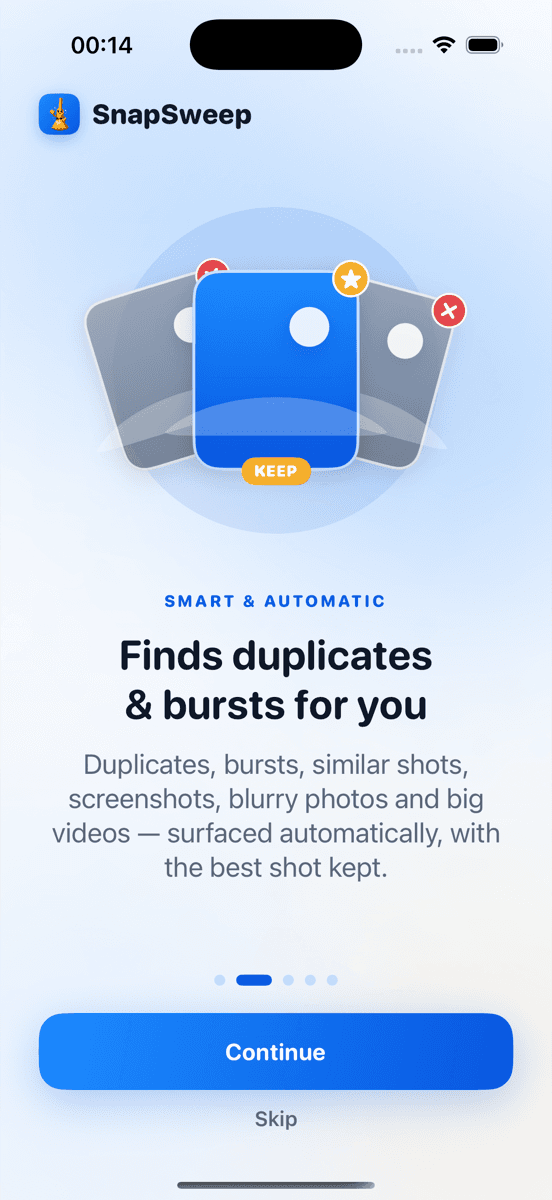
Photo by Roomier.
iOS 16 introduced a built-in Duplicates album that automatically finds and merges exact photo copies. For true duplicates, this free system tool works perfectly. Third-party cleaner apps excel where iOS stops — finding similar shots, burst sequences, blurry photos, and oversized videos that consume storage but aren't identical enough for the system to detect.
What the iOS Duplicates Album Actually Does
The iOS Duplicates feature lives at Photos > Albums > Utilities > Duplicates. It scans your photo library for identical images — same file size, same content, same metadata. When it finds matches, you tap "Merge" to keep the highest-quality version and delete the rest.
This works reliably for:
- Photos accidentally saved twice from messages or email
- Screenshots captured multiple times
- Images imported from multiple sources
- Exact copies created by certain apps
The merge process is conservative by design. iOS only flags photos as duplicates when they're genuinely identical. This prevents accidental deletion but means it misses similar photos that aren't exact matches.
Where Built-In Duplicates Fall Short
The iOS Duplicates album has clear limitations that third-party apps address:
Similar but not identical photos. If you took three nearly identical shots of the same subject with slight timing differences, iOS won't group them. Each photo has different metadata timestamps, so the system sees them as separate images.
Burst photo sequences. When you hold the shutter button, your iPhone captures multiple frames rapidly. These aren't duplicates in iOS's definition — they're a sequence of related but distinct photos. The system won't suggest deleting any burst frames automatically.
Quality-based filtering. iOS doesn't evaluate photo sharpness or composition quality. A blurry, poorly-framed shot sits alongside a perfect capture of the same moment without any system suggestion to clean up the inferior version.
Video compression opportunities. The Duplicates album only handles photos. Large 4K videos that could be compressed to free up significant space require manual intervention through Settings > General > iPhone Storage recommendations.
Cross-format matches. If you have the same image as both a JPEG and HEIC file, or as a photo and a screenshot, iOS may not recognize the connection depending on how the files were created.
When Third-Party Cleaners Add Value
Apps like Roomier, Gemini Photos, and Duplicate Photos Fixer use more sophisticated algorithms to find storage-wasting content the system misses:
Similar photo grouping. These apps analyze image content, not just file signatures. They can group photos of the same subject taken seconds apart, letting you pick the best shot and delete the rest.
Burst sequence cleanup. Third-party cleaners identify burst sequences and present them for review. You can keep the sharpest frame and delete the others, often recovering hundreds of megabytes.
Quality assessment. Some apps flag blurry, dark, or poorly-composed photos for potential deletion. While subjective, this helps identify obvious mistakes worth removing.
Video compression. Apps can re-encode large videos using more efficient compression, reducing file size by 50-80% while maintaining acceptable quality for most viewing scenarios.
Comprehensive scanning. A single scan can identify duplicates, similar photos, screenshots, blurry images, and large videos in one pass, providing a complete storage cleanup overview.
How to Use iOS Duplicates First
Before installing any third-party app, exhaust the free built-in options:
- Open Photos app
- Tap Albums at the bottom
- Scroll to Utilities section
- Tap Duplicates
- Review each group and tap Merge for confirmed duplicates
- Go to Settings > General > iPhone Storage
- Tap Photos and review recommendations
- Consider enabling Optimize iPhone Storage for automatic cloud management
If this process frees enough space and you're satisfied with the results, you may not need additional tools. The built-in approach works well for users with minimal photo clutter or those who rarely take burst sequences.
Choosing the Right Third-Party App
When built-in tools aren't sufficient, evaluate cleaner apps carefully:
Privacy considerations. Choose apps that process photos on-device rather than uploading your library to external servers. Check the privacy policy for data handling practices.
Review before deletion. Avoid apps that auto-delete photos without human review. Quality assessment algorithms make mistakes, and you should approve every deletion.
Pricing transparency. Many cleaner apps use weekly subscription models that compound to over $250 per year. Look for monthly, annual, or one-time purchase options with clear pricing.
Feature scope. Some apps focus solely on duplicates, while others handle similar photos, videos, screenshots, and storage optimization. Choose based on your specific needs.
Safety features. Ensure the app protects favorites, edited photos, and recently captured images from accidental deletion.
Roomier exemplifies the privacy-focused approach — it runs entirely on-device, requires manual review of all deletions, and offers transparent pricing with a functional free tier for basic cleanup needs.
Performance Comparison: Speed and Accuracy
Built-in iOS duplicates scanning completes quickly because it only compares file signatures and metadata. The process typically finishes in under a minute even for large libraries.
Third-party apps take longer because they analyze actual image content. A comprehensive scan of 10,000 photos might require 5-15 minutes depending on the device and algorithm sophistication. However, this deeper analysis finds significantly more cleanup opportunities.
Accuracy varies by use case:
- Exact duplicates: iOS Duplicates and quality third-party apps both achieve near-perfect accuracy
- Similar photos: Only third-party apps attempt this, with accuracy depending on algorithm quality and user preferences
- Quality assessment: Highly subjective, requiring human review regardless of the app's suggestions
Storage Impact: What to Expect
The iOS Duplicates album typically recovers modest amounts of storage — often under 1GB unless you frequently save photos from messages or import from multiple sources.
Third-party cleaners can recover substantially more:
- Similar photos: 2-5GB for users who take multiple shots of subjects
- Burst sequences: 1-3GB for users who frequently use burst mode
- Video compression: 5-20GB for users with many large 4K recordings
- Screenshot cleanup: 500MB-2GB depending on screenshot habits
These numbers vary dramatically based on photography patterns and library size.
Limitations of All Photo Cleanup Approaches
Neither built-in tools nor third-party apps solve every storage problem:
App and system data. Photo cleanup doesn't affect space used by installed apps, iOS system files, or cached data. These often consume more storage than photos.
Cloud storage complexity. Cleaning local photos doesn't automatically optimize iCloud Photos storage. Cloud and device cleanup are separate processes with different considerations.
Compression trade-offs. Video compression reduces quality even when done carefully. The size savings come at the cost of some visual fidelity and potential compatibility issues with older devices.
Algorithm limitations. No automated system perfectly identifies which photo in a burst sequence is "best." Human judgment remains necessary for subjective quality decisions.
Sync complications. Changes made by third-party apps may take time to sync across devices and can occasionally cause temporary discrepancies in photo counts.
The iOS Duplicates album provides an excellent starting point for basic cleanup needs. When you need more comprehensive scanning that finds similar photos, burst sequences, and storage-hungry videos, a privacy-focused third-party cleaner becomes valuable. The key is understanding what each approach does well and choosing the right tool for your specific storage situation.
Frequently asked questions
- Does the iOS Duplicates album work as well as third-party cleaner apps?
- For exact duplicates, yes. iOS Duplicates reliably finds and merges identical photos. Third-party apps excel at finding similar shots, burst sequences, and blurry photos that iOS misses.
- Is it safe to use both iOS Duplicates and a third-party cleaner app?
- Yes, use iOS Duplicates first to handle exact duplicates for free. Then run a third-party cleaner to find similar photos and other storage-wasting content the system missed.
- Why doesn't iOS Duplicates find my burst photos or similar shots?
- iOS only flags photos as duplicates when they're identical files. Burst photos and similar shots have different timestamps and content, so the system treats them as separate images.
- How much storage can I expect to recover with each method?
- iOS Duplicates typically recovers under 1GB. Third-party cleaners can recover 5-20GB by finding similar photos, burst sequences, and compressing large videos, depending on your photo habits.
- Do third-party photo cleaners upload my photos to their servers?
- Some do, some don't. Check the privacy policy carefully. Apps like Roomier process everything on-device, while others upload photos for cloud-based analysis. Choose based on your privacy preferences.
- Can photo cleanup apps delete photos I want to keep?
- Quality apps require manual review before deletion. Avoid apps that auto-delete without human approval. Even with review, backup important photos before running any cleanup process.