Merge Duplicate Photos on iPhone: What Actually Happens
When you tap Merge in iPhone Photos, iOS keeps the highest-quality copy, moves it to its original date, and sends the rest to Recently Deleted for 30 days. Here's exactly what that means for your storage.
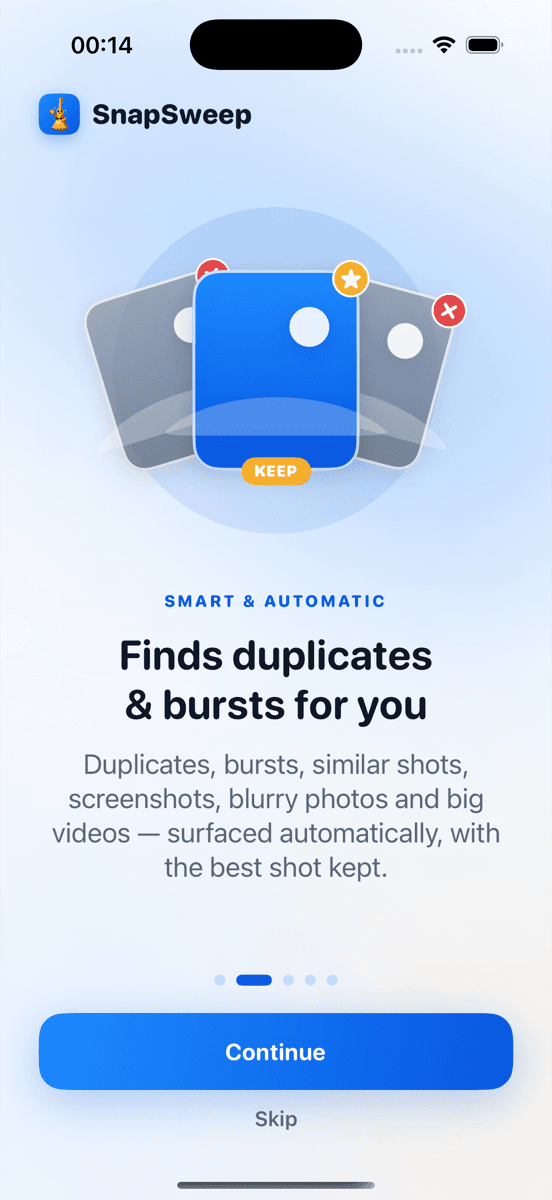
Photo by Roomier.
When you tap Merge in the iPhone Photos Duplicates album, iOS keeps the highest-quality version of the photo, combines any metadata from the copies, moves the surviving image to the date it was originally taken, and sends the discarded copies to Recently Deleted — where they sit for 30 days before storage is permanently freed. Nothing is lost instantly, and nothing is auto-deleted without a trace.
That's the short answer. The rest of this post unpacks each step so you can act confidently.
How iOS Identifies Duplicate Photos
The Duplicates album arrived in iOS 16 (iPhone) and iPadOS 16.1. Apple's on-device machine learning compares image content, metadata, and file hashes to group photos it considers duplicates. It surfaces two sub-types:
- Exact copies — bit-for-bit identical files (same pixel data, same file size). These are most common when you've imported the same photo twice or restored from a backup.
- Similar items — photos with matching content but different resolutions, compression levels, or minor edits. A HEIC original and a JPEG export of the same shot, for example, or a Live Photo alongside a still version saved by a third-party app.
The album only appears when iOS has found at least one group. If you don't see it under Photos > Albums > Utilities, your library has no detected duplicates.
What "Merge" Actually Does, Step by Step
1. iOS picks the highest-quality copy
For exact duplicates, either copy could be kept — they're identical. For similar items, iOS scores each version on resolution, file format, and whether it carries Live Photo data or edits, then keeps the one it scores highest. A full-resolution HEIC original will beat a compressed JPEG share copy every time.
2. Metadata is combined into the surviving photo
This is the part most guides skip. iOS merges metadata from all copies into the keeper: captions, keywords, album memberships, and location data. If you captioned the JPEG but not the HEIC, the surviving HEIC will inherit that caption. No annotation work is lost.
3. The keeper moves to the original capture date
The surviving photo is placed at the earliest timestamp among the group. If your JPEG was saved in 2023 but the original HEIC was shot in 2021, the merged photo appears in your 2021 timeline — which can look like a photo "jumped" in your library. It hasn't disappeared; it's just filed correctly.
4. The discarded copies go to Recently Deleted
The copies that weren't kept are not immediately deleted. They move to Photos > Albums > Recently Deleted, where they remain for 30 days. You can recover any of them during that window. After 30 days, iOS permanently deletes them and the storage is freed.
Does Merging Photos Actually Free Up Storage?
Not immediately — and this surprises a lot of people.
Right after you tap Merge, your iPhone storage reading in Settings > General > iPhone Storage will not drop. The discarded copies are still on the device in Recently Deleted. The space is only reclaimed when:
- The 30-day window expires and iOS auto-purges Recently Deleted, or
- You manually go to Photos > Albums > Recently Deleted > Select All > Delete to empty it immediately.
If you're trying to free up storage urgently, empty Recently Deleted right after merging. One tap recovers the space rather than waiting a month.
Merge vs. Delete: What's the Difference?
| Action | What's kept | Where the rest goes | Storage freed |
|---|---|---|---|
| Merge | Highest-quality copy, combined metadata | Recently Deleted (30 days) | After 30 days or manual purge |
| Delete | Nothing — you choose what to remove | Recently Deleted (30 days) | After 30 days or manual purge |
Merge is a smarter delete: iOS decides which copy survives and preserves your metadata. Delete is a manual choice. Neither frees space instantly on-device.
iCloud and Google Photos: The Cloud Complication
If you use iCloud Photos, the merge propagates to the cloud and to all your signed-in devices within minutes. The discarded copies disappear from iCloud too — they're only recoverable from Recently Deleted during the 30-day window.
If you use Google Photos alongside the Apple Photos app, the two libraries are independent. Merging in Apple Photos does nothing to your Google Photos library. You'd need to manage duplicates there separately through Google Photos storage management.
When the Built-In Duplicates Album Is Enough
For most people with a straightforward library, the built-in Duplicates album is all you need:
- Go to: Photos > Albums (scroll to Utilities) > Duplicates
- Tap Merge on individual groups, or tap Select then Merge All for the entire album
- Then empty Recently Deleted to reclaim storage immediately
If the Duplicates album is empty or shows only a handful of groups, the built-in tool has done its job. You don't need anything else.
Where the Built-In Tool Has Limits
iOS's Duplicates album has a defined scope. It won't surface:
- Near-duplicate burst shots — ten frames of the same moment, each slightly different, none of which are "exact" copies
- Blurry or redundant photos — out-of-focus shots, accidental captures, or six nearly identical sunset frames
- Duplicate screenshots — screenshots saved multiple times, or screenshots of the same conversation
- Large videos — 4K/60fps clips that each exceed 400 MB and have never been reviewed
These categories sit outside what Apple's algorithm targets. A third-party cleaner like Roomier scans for all of them in a single pass and groups them for swipe-by-swipe review — you decide what to keep before anything is queued for deletion. (Clever Cleaner is a free alternative worth checking if budget is a constraint.)
Limitations to Know Before You Clean
Photo cleanup addresses library clutter — it can't recover space used by apps, the iOS system, or app caches. A few honest caveats:
- Compression is lossy. Re-encoding a video to a smaller format trades file size for some quality. The original 4K file is gone once deleted.
- No algorithm picks the right burst frame every time. Review before you delete.
- On-device and cloud are separate problems. Freeing space on your iPhone doesn't shrink your iCloud or Google Photos plan.
- Recently Deleted still uses storage. Until you empty it, deleted photos count against your device storage.
If you've merged all your duplicates, emptied Recently Deleted, and your storage reading still hasn't moved much, the culprit is likely apps or system data — check Settings > General > iPhone Storage for the breakdown by category.
Understanding exactly what Merge does — and what it doesn't do — means you can use it without second-guessing every tap. Start with the built-in Duplicates album, empty Recently Deleted afterward, and check the breakdown in iPhone Storage to see where the remaining space is going.
Frequently asked questions
- Does merging duplicate photos on iPhone delete them permanently?
- No. When you tap Merge, iOS keeps the highest-quality copy and moves the discarded copies to Recently Deleted. They stay there for 30 days and can be recovered. Permanent deletion — and storage recovery — only happens after that 30-day window, or when you manually empty Recently Deleted.
- Which photo does iPhone keep when you merge duplicates?
- iOS keeps the highest-quality version: the one with the highest resolution, the best file format (HEIC over JPEG), or the copy that carries Live Photo data or edits. Metadata from all copies — captions, keywords, location — is merged into the surviving photo.
- Why hasn't my storage gone down after merging duplicates?
- Merged copies move to Recently Deleted, not off the device. Storage is only freed after 30 days or when you manually empty Recently Deleted via Photos > Albums > Recently Deleted > Select All > Delete. That single step reclaims the space immediately.
- What is the difference between 'Exact Copies' and 'Other Items' in the iPhone Duplicates album?
- Exact Copies are bit-for-bit identical files — same pixels, same file size. Other Items (sometimes labeled Similar) are photos with matching content but different resolutions, formats, or compression levels, such as a HEIC original and a JPEG export of the same image.
- Does merging photos on iPhone also merge them in iCloud?
- Yes. If iCloud Photos is enabled, the merge syncs to iCloud and all your signed-in devices. The discarded copies are removed from iCloud too, and are only recoverable from Recently Deleted within the 30-day window.
- What duplicates does the iPhone Duplicates album miss?
- The built-in album targets exact and near-exact copies but skips burst shots, blurry photos, duplicate screenshots, and large redundant videos. For those categories, you need to review your library manually or use a third-party cleaner that scans for broader types of clutter.