How to Delete Duplicate Photos on iPhone for Free (Built-in + Apps)
Delete duplicate photos on iPhone using the free built-in Duplicates album in iOS 16+ or third-party apps. Step-by-step guide covers both exact duplicates and similar burst shots.
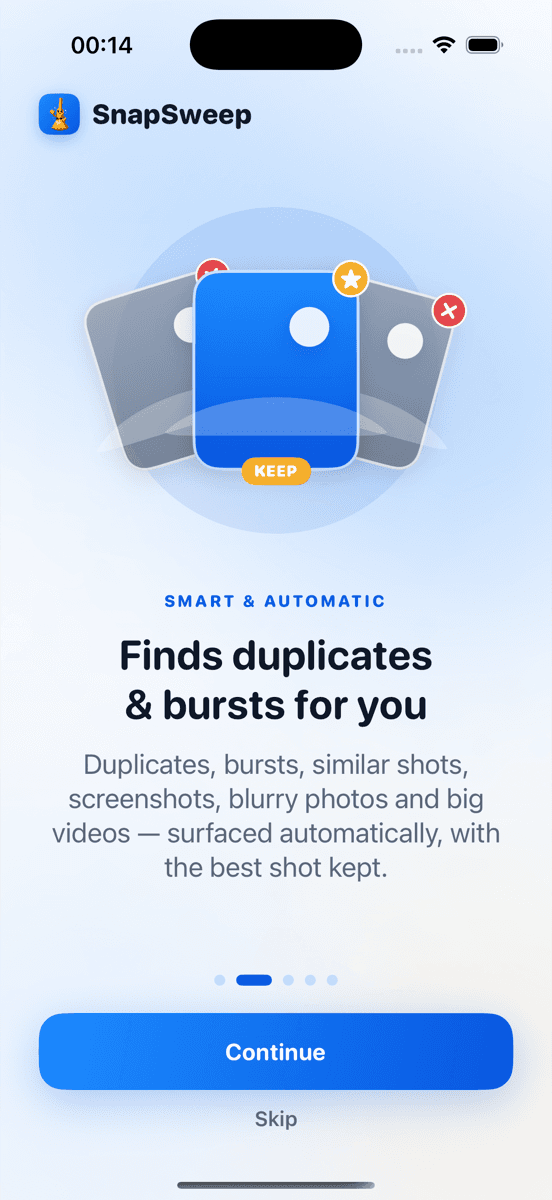
Photo by Roomier.
The Free Built-in Method: iOS Duplicates Album
iPhone users running iOS 16 or later have access to a built-in duplicate detection feature. Apple's Photos app automatically identifies exact duplicates and groups them in a dedicated album.
Here's how to access and use it:
- Open the Photos app on your iPhone
- Tap Albums at the bottom
- Scroll down to Utilities and tap Duplicates
- Review each group of duplicate photos
- Tap Merge to keep the highest quality version and delete the rest
The Duplicates album appears only when the system detects actual duplicate photos. If you don't see it, you likely have no exact duplicates that iOS can identify.
What the Built-in Tool Finds (and Misses)
Apple's duplicate detection works well for identical photos — the same image saved multiple times or imported from different sources. It automatically preserves the highest quality version and any associated metadata.
However, the built-in tool has notable limitations:
- Similar photos: Burst shots that are nearly identical but technically different won't be flagged
- Screenshots: Multiple screenshots of the same content aren't grouped as duplicates
- Edited versions: Photos with minor edits (crops, filters) aren't detected as duplicates of the original
- Different formats: The same image in HEIC and JPEG format may not be identified as duplicates
For many users dealing with basic duplicate issues, the iOS Duplicates album is sufficient. But if your photo library contains extensive burst sequences, multiple screenshots, or similar-but-not-identical photos, you'll need additional tools.
Beyond Exact Duplicates: Similar Photos and Burst Cleanup
Burst mode creates the most common "duplicate" scenario that built-in tools miss. When you hold the shutter button, your iPhone captures multiple frames per second. These photos are technically different but often show nearly identical scenes.
Manual Burst Cleanup
You can manually review burst sequences:
- Open Photos and navigate to a burst sequence
- Tap Select at the top
- Choose your favorite frames
- Tap Done and select Keep Only X Favorites
This works for individual burst sequences but becomes tedious with hundreds of similar photos across your library.
Third-Party Apps for Comprehensive Cleanup
Apps like Roomier, Gemini Photos, and Duplicate Photos Fixer can identify similar photos, not just exact duplicates. These tools use image analysis to group visually similar content.
Key features to look for:
- On-device processing: Your photos never leave your phone
- Review before deletion: Manual approval for each deletion
- Protected content: Favorites and edited photos are automatically excluded
- Category grouping: Separate sections for exact duplicates, similar shots, screenshots, and blurry photos
Roomier scans your entire photo library on-device and groups similar content by category. You then swipe through each group to keep or delete individual photos. The free version includes 8 deletions and 20 swipes, with additional actions available through rewarded ads.
Step-by-Step: Using iPhone Storage Recommendations
iOS also provides storage cleanup suggestions through the Settings app:
- Open Settings on your iPhone
- Tap General > iPhone Storage
- Wait for the storage analysis to complete
- Look for Photos recommendations
- Tap Review Large Attachments or Review Downloaded Videos
This method helps identify storage-heavy content but doesn't specifically target duplicates. It's most useful for finding large videos and attachments that consume significant space.
What About iCloud Photos?
If you use iCloud Photos, duplicate cleanup becomes more complex. Deleting photos from your iPhone also removes them from iCloud and all connected devices.
The iOS Duplicates album works with iCloud Photos, but third-party apps may have limitations. Some apps can only scan photos stored locally on your device, not those optimized to iCloud.
Before using any cleanup tool with iCloud Photos enabled:
- Ensure you have a recent backup
- Understand that deletions sync across all devices
- Consider downloading full-resolution versions for thorough scanning
Storage Impact: How Much Space Can You Recover?
The storage savings from duplicate cleanup vary significantly based on your photo habits:
- Light photographers: 100-500 MB recovery typical
- Frequent burst users: 1-5 GB possible
- Screenshot collectors: 500 MB - 2 GB common
- Heavy video shooters: 5-20 GB+ potential (mostly from large video files)
A typical iPhone photo ranges from 2-5 MB, while a minute of 4K video can exceed 400 MB. Duplicate videos have far greater storage impact than duplicate photos.
Comparing Free vs. Paid Cleanup Options
Free Options
- iOS Duplicates album: Perfect for exact duplicates, zero cost
- Manual review: Time-intensive but completely free
- Roomier free tier: 8 deletions + 20 swipes, expandable with ads
Paid App Considerations
- Subscription costs: Weekly subscriptions can exceed $250 annually
- Feature differences: Paid versions typically offer unlimited deletions and advanced filtering
- Privacy policies: Verify that apps process photos on-device rather than uploading to servers
Many users find the combination of iOS's built-in Duplicates album plus occasional manual cleanup sufficient for their needs.
Safety and Recovery Options
All iPhone photo deletions go through the same safety mechanism:
- Deleted photos move to Recently Deleted album
- Items remain recoverable for 30 days
- After 30 days, deletion becomes permanent
This applies whether you delete through the Photos app, Settings recommendations, or third-party cleanup tools. The Recently Deleted album serves as your safety net for accidental deletions.
To recover deleted photos:
- Open Photos app
- Tap Albums > Recently Deleted
- Select photos to recover
- Tap Recover
Limitations of Photo Cleanup
Duplicate photo removal addresses only one aspect of iPhone storage management:
- App data: Photo cleanup won't reduce space used by installed apps or their data
- System storage: iOS system files and caches remain unchanged
- Other media: Music, podcasts, and downloaded videos require separate cleanup
- iCloud optimization: If your photos are stored in iCloud, local cleanup may have minimal impact
For comprehensive storage management, combine photo cleanup with app management, cache clearing, and review of downloaded content.
Additionally, no automated system perfectly identifies which photos to keep from burst sequences or similar shots. Manual review remains the most reliable method for preserving your best photos while removing unwanted duplicates.
When Built-in Tools Are Enough
The iOS Duplicates album handles the most common duplicate scenarios effectively. Consider sticking with Apple's built-in solution if:
- You primarily have exact duplicates from imports or downloads
- Your photo library is well-organized with minimal burst sequences
- You're comfortable with manual cleanup for edge cases
- You prefer not to install additional apps
For users with extensive burst photography, multiple screenshots of similar content, or large photo libraries with thousands of similar images, dedicated cleanup apps provide more comprehensive detection and streamlined review workflows."
Frequently asked questions
- Does the iPhone have a built-in way to delete duplicate photos?
- Yes, iOS 16+ includes a Duplicates album in Photos > Albums > Utilities. It automatically detects exact duplicates and lets you merge them, keeping the highest quality version.
- Why don't I see a Duplicates album on my iPhone?
- The Duplicates album only appears when iOS detects exact duplicate photos in your library. If you don't see it, you likely have no exact duplicates that the system can identify.
- Can I recover photos after deleting duplicates?
- Yes, all deleted photos go to the Recently Deleted album where they remain recoverable for 30 days. After 30 days, deletion becomes permanent.
- Do duplicate photo apps work with iCloud Photos?
- Results vary by app. The built-in Duplicates album works with iCloud Photos, but some third-party apps can only scan photos stored locally on your device.
- How much storage can I free up by deleting duplicates?
- Storage recovery depends on your photo habits. Light users might recover 100-500 MB, while heavy burst photographers could free up 1-5 GB or more.
- Are free duplicate photo cleaners safe to use?
- Look for apps that process photos on-device rather than uploading to servers. Always verify that favorites and edited photos are protected from deletion.