How to Delete Duplicate Photos on iPhone for Free (Built-In + Apps)
iPhone's built-in Duplicates album finds exact copies automatically. For similar shots and burst cleanup, third-party apps like Roomier scan deeper while keeping everything on-device.
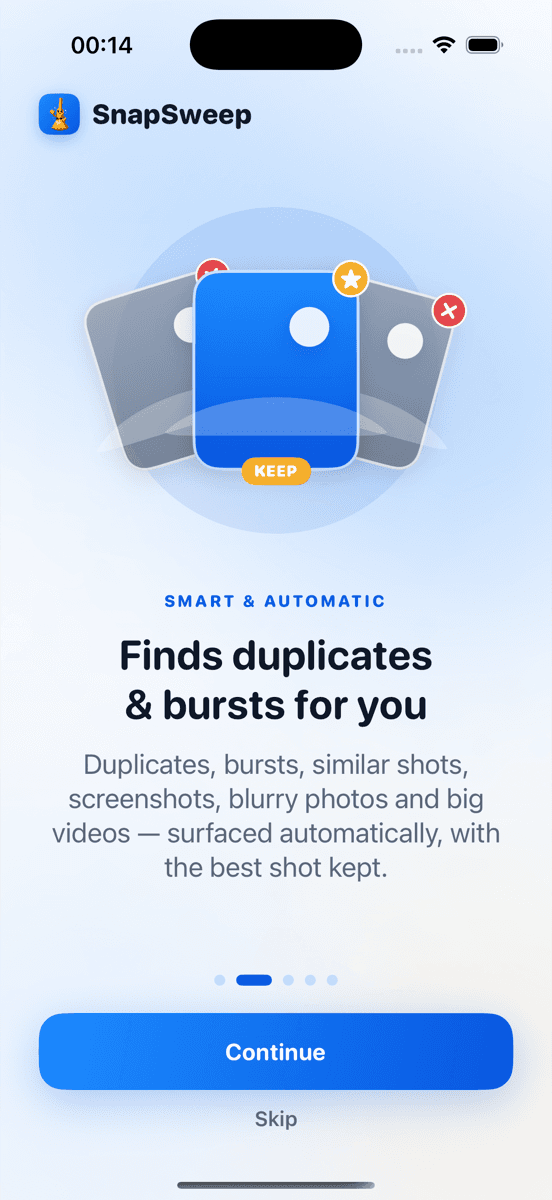
Photo by Roomier.
iPhone's built-in Duplicates album automatically finds exact copies of photos and lets you merge them with one tap. For most users dealing with true duplicates, this free feature is enough. Third-party apps add value when you need to clean similar shots, burst sequences, or blurry photos that the built-in detector misses.
How to Use iPhone's Built-In Duplicate Detection
iOS 16 and later includes automatic duplicate detection in the Photos app. The system scans your library continuously and groups identical photos in a dedicated album.
To access your duplicates:
- Open the Photos app
- Tap Albums at the bottom
- Scroll to Utilities
- Tap Duplicates
Each group shows identical photos with a "Merge" button. Tapping Merge keeps the highest quality version and moves the rest to Recently Deleted. The process is reversible for 30 days through the Recently Deleted album.
This built-in feature works well for:
- Exact duplicates from importing the same photo twice
- Screenshots saved multiple times
- Photos synced from multiple sources
The system protects edited photos and favorites automatically. It won't suggest merging a photo with its edited version.
What the Built-In Tool Misses
iPhone's duplicate detection only catches identical files. It doesn't find:
- Similar burst shots: Multiple photos from the same burst sequence that look nearly identical
- Near-duplicates: Photos taken seconds apart with slight differences in angle or expression
- Screenshot variations: Multiple screenshots of the same content with different timestamps
- Blurry versions: Sharp and blurry versions of the same scene
A typical photo library accumulates hundreds of these similar-but-not-identical photos over time. Each photo averages 2-5 MB, so 200 similar shots can consume 1 GB of storage.
When to Consider Third-Party Apps
Third-party duplicate cleaners use visual similarity algorithms to find photos the built-in tool misses. They're worth considering if:
- Your storage is nearly full despite using the built-in Duplicates album
- You take many burst photos or screenshots
- You want to review similar photos side-by-side before deleting
- You need more granular control over what gets removed
Key Features to Look For
On-device processing: Apps like Roomier scan your library locally without uploading photos to external servers. This protects privacy and works without internet connection.
Review before deletion: Automatic deletion is risky. Look for apps that show you each photo and let you decide what to keep.
Exact vs. similar detection: The best apps separate exact duplicates from similar photos, letting you handle each category differently.
Batch operations: Efficient apps let you select multiple photos at once rather than reviewing them individually.
Alternative iPhone Storage Solutions
Before installing additional apps, try these built-in storage optimizations:
iPhone Storage Recommendations
- Go to Settings > General > iPhone Storage
- Wait for recommendations to load
- Review suggestions like "Offload Unused Apps" and "Review Large Attachments"
- Enable "Optimize iPhone Storage" under Photos settings to store full-resolution photos in iCloud
Automatic Photo Cleanup
Enable these settings to prevent accumulation:
- Settings > Camera > Keep Normal Photo (when using Portrait mode)
- Settings > Camera > Auto Delete Duplicate Photos (iOS 17+)
- Photos > Albums > Recently Deleted > Delete All (to permanently remove photos)
How Roomier Handles iPhone Duplicates
Roomier scans your photo library on-device and categorizes findings into exact duplicates, similar photos, screenshots, blurry images, and large videos. The app shows potential storage savings for each category before you review anything.
The swipe interface lets you keep or queue photos for deletion. Nothing is removed until you confirm through iOS's standard deletion dialog. Deleted photos go to Recently Deleted for 30-day recovery.
Roomier's free tier includes a full scan and 8 item deletions. Premium removes limits and adds video compression. The app never uploads your photos or requires an account.
Other reputable options include Gemini Photos and Duplicate Photos Fixer, though each has different approaches to detection and pricing.
Storage Impact and Realistic Expectations
Duplicate cleanup typically recovers 500 MB to 2 GB on phones with large photo libraries. The exact amount depends on your shooting habits and how long you've owned the device.
Photos and videos only represent part of your storage usage. Apps, system data, messages, and cached files often consume more space than media. Check Settings > General > iPhone Storage for a complete breakdown.
What Duplicate Cleanup Can't Fix
- App storage: Large apps like games or productivity software
- System data: iOS files and caches that rebuild automatically
- Messages: Attachments in text conversations
- Other media: Music, podcasts, and downloaded videos outside Photos
If duplicate cleanup doesn't free enough space, consider offloading unused apps or upgrading to a higher storage tier.
Limitations to Keep in Mind
No duplicate detection is perfect. Algorithms sometimes group photos incorrectly or miss obvious duplicates. Always review suggestions before confirming deletions.
Visual similarity detection works best with identical or near-identical compositions. It may struggle with:
- Photos of different subjects in similar lighting
- Screenshots with mostly text content
- Low-light photos with heavy noise
The built-in iOS feature remains the safest option for exact duplicates. Third-party apps add value for similar photos but require more careful review.
Cloud storage and local storage are separate concerns. Deleting photos from your iPhone doesn't automatically free iCloud space if you have iCloud Photos enabled. Manage iCloud storage separately through Settings > [Your Name] > iCloud > Manage Storage.
Ready to reclaim storage space? Start with iPhone's built-in Duplicates album for exact copies, then consider a privacy-focused app like Roomier for deeper cleanup of similar photos and burst sequences.
Frequently asked questions
- Does iPhone automatically delete duplicate photos?
- No, iPhone detects duplicates automatically but requires manual confirmation to merge them. Go to Photos > Albums > Utilities > Duplicates and tap 'Merge' on each group to combine identical photos.
- Why doesn't iPhone's duplicate detector find all my similar photos?
- iPhone only finds identical files, not visually similar photos. It won't detect burst shots, near-duplicates, or photos taken seconds apart that look similar but have different file signatures.
- Is it safe to use third-party duplicate photo apps?
- Apps that process photos on-device without uploading them are generally safe. Avoid apps that require uploading your library to external servers or promise automatic deletion without review.
- How much storage can I recover by deleting duplicates?
- Typical recovery ranges from 500 MB to 2 GB depending on your photo habits. Each photo averages 2-5 MB, so removing 200-400 duplicates can free significant space.
- Will deleting duplicates affect my iCloud Photos?
- If iCloud Photos is enabled, deletions sync across all devices. Photos move to Recently Deleted for 30 days before permanent removal. This affects your iCloud storage quota.
- Can I recover photos after using duplicate cleanup apps?
- Yes, deleted photos go to iPhone's Recently Deleted album for 30 days. You can restore them individually or tap 'Recover All' to restore everything before permanent deletion.