How to Delete Duplicate Photos on iPhone for Free (2026 Guide)
Delete duplicate photos on iPhone using the built-in Duplicates album or third-party apps. Step-by-step guide to free up storage without losing memories.
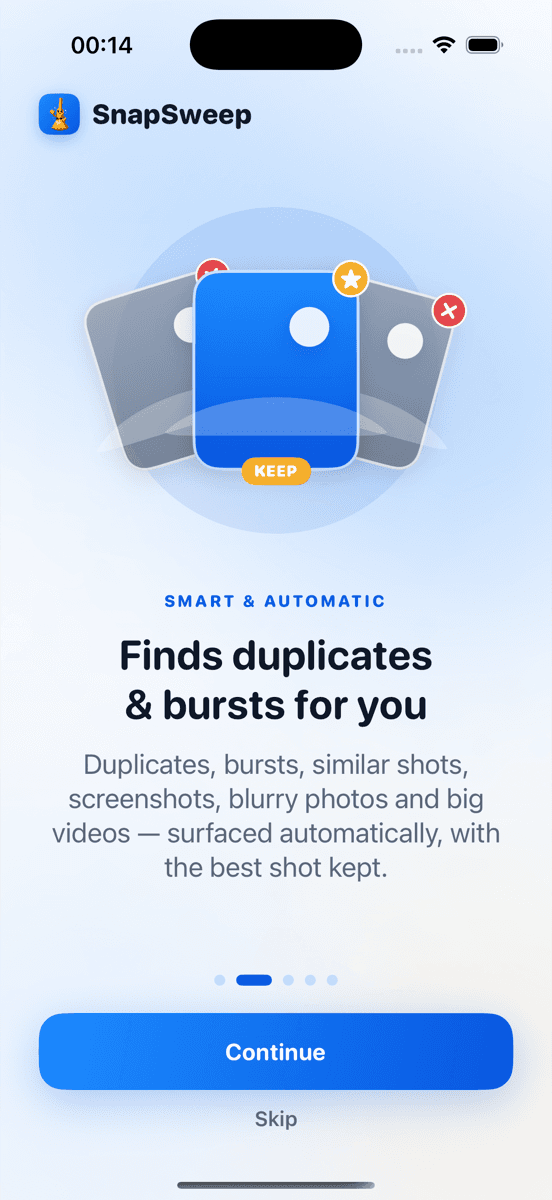
Photo by Roomier.
Your iPhone automatically creates duplicate photos when you take burst shots, screenshot the same content multiple times, or sync photos across devices. The built-in Photos app can find and merge exact duplicates for free, while third-party apps handle similar shots and near-duplicates the system misses.
How to Use iPhone's Built-In Duplicate Detection
iOS 16 and later includes a Duplicates album that automatically groups identical photos for easy removal. This free feature handles exact duplicates without requiring additional apps.
Step-by-Step: Access the Duplicates Album
- Open the Photos app on your iPhone
- Tap Albums at the bottom of the screen
- Scroll down to the Utilities section
- Tap Duplicates
If you don't see a Duplicates album, your photo library contains no exact duplicates that iOS can detect.
How to Merge Duplicate Photos
When you find duplicates in the album:
- Tap Select in the top-right corner
- Choose the duplicate groups you want to merge
- Tap Merge at the bottom of the screen
- Confirm by tapping Merge X Items
The system keeps the highest-quality version and moves duplicates to Recently Deleted, where they remain for 30 days before permanent deletion.
What the Built-In Tool Misses
iPhone's Duplicates album only catches identical files — photos with matching pixels, file sizes, and metadata. It cannot identify:
- Similar burst shots taken seconds apart
- Screenshots of the same content with slight differences
- Photos that are visually identical but technically different files
- Live Photos and their still counterparts
- Edited versions of the same base photo
A typical iPhone user accumulates hundreds of these near-duplicates that the system cannot detect automatically.
Alternative Methods to Find More Duplicates
Using iPhone Storage Recommendations
Your iPhone provides storage cleanup suggestions that sometimes include duplicate-adjacent content:
- Go to Settings > General > iPhone Storage
- Wait for recommendations to load
- Look for suggestions like "Review Large Attachments" or "Offload Unused Apps"
These recommendations focus on large files rather than duplicates specifically, but can help identify storage-heavy photo content.
Third-Party Duplicate Cleaners
Apps designed for duplicate detection can find similar photos the built-in tool misses. When evaluating options, prioritize:
- On-device processing: Photos never leave your phone
- Manual review: You approve each deletion
- Free tier availability: Try before committing to subscriptions
- No auto-deletion: Nothing gets removed without your confirmation
Roomier, for example, groups similar burst shots and near-duplicates for swipe-by-swipe review, letting you keep the best version while removing visual clutter. Other options include Gemini Photos and Duplicate Photos Fixer, though each uses different detection algorithms.
How Much Storage Duplicate Photos Actually Use
Individual photos typically consume 2-5 MB each, depending on your iPhone model and camera settings. A collection of 50 duplicate photos might free up 100-250 MB — meaningful but not transformative for most users.
The real storage impact comes from duplicate videos, which can exceed 400 MB per minute of 4K footage. A single duplicated vacation video often consumes more space than hundreds of duplicate photos combined.
When Built-In Tools Are Enough
Use only iPhone's native Duplicates album if:
- You rarely take burst photos or multiple screenshots
- Your photo library is relatively small (under 5,000 photos)
- You manually delete obvious duplicates as you go
- Storage pressure is minimal
The built-in approach works well for users who primarily have exact duplicates from cloud syncing or device transfers.
When You Need a Third-Party App
Consider additional tools if:
- You frequently use burst mode or Portrait mode
- Your library contains thousands of photos accumulated over years
- You want to identify similar shots, not just identical files
- You need help deciding which version of similar photos to keep
Third-party apps excel at visual similarity detection that goes beyond file-level matching.
Safety Considerations for Duplicate Removal
Protecting Important Photos
Before removing any duplicates:
- Mark favorites: Tap the heart icon on photos you want to preserve
- Check for edits: Edited photos often appear similar to originals but contain your adjustments
- Review Live Photos: The still and video components may be treated as separate items
Both iOS and reputable third-party apps protect favorited and edited photos from accidental deletion.
Understanding Recently Deleted Recovery
Deleted photos remain in the Recently Deleted album for 30 days, providing a safety net for mistakes. You can recover any photo during this period by:
- Opening the Recently Deleted album
- Selecting the photos to restore
- Tapping Recover
After 30 days, deletion becomes permanent and irreversible.
Limitations of Duplicate Photo Cleanup
Removing duplicate photos addresses only one aspect of iPhone storage management. This approach cannot:
- Free up app data: System files, app caches, and downloaded content often consume more space than photo duplicates
- Solve video storage issues: Large videos require compression or deletion, not duplicate removal
- Handle iCloud optimization: Photos stored in iCloud may not show their true local storage impact
- Perfect burst selection: No algorithm consistently picks the best frame from action sequences
Consider duplicate cleanup as part of broader storage management rather than a complete solution.
Avoiding Common Duplicate Cleaner Pitfalls
When exploring third-party options, watch for:
- Weekly subscription billing: Apps charging $4.99/week compound to over $250 annually
- Auto-deletion features: Apps that remove photos without manual review create risk
- Cloud upload requirements: Some cleaners upload your library to remote servers for processing
- Aggressive upselling: Free trials that immediately push expensive subscriptions
Read app descriptions carefully and test free tiers before committing to paid plans.
Duplicate photo removal works best as a targeted cleanup strategy rather than ongoing maintenance. iPhone's built-in Duplicates album handles exact matches effectively, while specialized apps like Roomier can identify the visual similarities that system tools miss. Choose your approach based on your photo habits, storage needs, and comfort with third-party software.
Frequently asked questions
- Does iPhone automatically delete duplicate photos?
- No, iPhone never automatically deletes photos. The Duplicates album groups identical photos for manual review, but you must tap Merge to remove them. All deletions require your explicit confirmation.
- Why doesn't my iPhone show a Duplicates album?
- The Duplicates album only appears when iOS detects exact duplicate photos in your library. If you don't see it, your photos don't contain identical files that the system can recognize.
- Can I recover photos after merging duplicates?
- Yes, merged photos go to Recently Deleted where they remain for 30 days. You can recover them anytime during this period before they're permanently deleted.
- Do third-party duplicate cleaners upload my photos?
- Some do, some don't. Check app descriptions for on-device processing claims. Apps like Roomier process everything locally, while others may upload photos to cloud servers for analysis.
- How much storage will removing duplicates actually free up?
- Individual photos use 2-5 MB each, so removing 50 duplicates might free 100-250 MB. The bigger impact comes from duplicate videos, which can exceed 400 MB per minute.
- Can duplicate photo apps delete the wrong photos?
- Quality apps protect favorited and edited photos from deletion. However, no algorithm perfectly identifies the best version of similar shots, so manual review before deletion remains important.