How to Delete Duplicate Photos on iPhone for Free
Delete duplicate photos on iPhone using the built-in Duplicates album or third-party apps. Learn which method works best for exact duplicates vs similar burst shots.
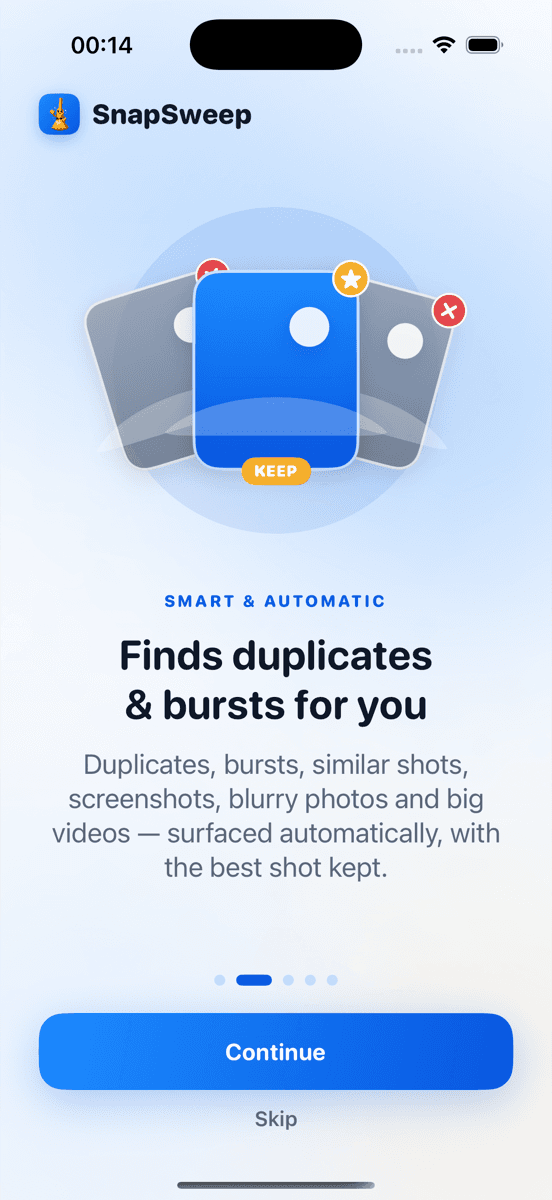
Photo by Roomier.
iPhone users can delete duplicate photos for free using the built-in Duplicates album in iOS 16 and later, which automatically detects exact matches and lets you merge them with one tap. For similar burst shots and near-duplicates that iOS misses, third-party apps provide more comprehensive scanning.
How to Use iPhone's Built-in Duplicates Album
Apple's Photos app includes a Duplicates album that finds exact matches automatically. This feature works well for true duplicates — identical photos saved multiple times.
To access the Duplicates album:
- Open the Photos app
- Tap Albums at the bottom
- Scroll down to Utilities
- Tap Duplicates
If you see duplicate photos grouped together, tap Merge to keep the highest quality version and delete the rest. The merged photo retains all metadata, including location data and edit history.
The Duplicates album only appears when iOS detects exact matches. If the album is missing, you have no true duplicates that iOS can identify.
What iPhone's Duplicates Album Misses
The built-in feature has significant limitations:
- Similar burst shots: Photos taken in rapid succession that look nearly identical but aren't pixel-perfect matches
- Screenshots of the same content: Multiple screenshots of the same webpage or conversation
- Edited versions: Original photo plus edited versions aren't grouped as duplicates
- Different file formats: HEIC and JPG versions of the same image
- Slightly different crops: Photos cropped differently from the same source
A typical iPhone user accumulates hundreds of these "near-duplicates" that consume storage but don't appear in the Duplicates album.
When to Use Third-Party Duplicate Photo Apps
Consider a third-party app if:
- Your iPhone storage is full despite using the built-in Duplicates album
- You take many burst photos and want to keep only the best shots
- You frequently screenshot the same content multiple times
- You import photos from multiple sources (camera, social media, messages)
Third-party apps use visual similarity algorithms to find near-duplicates that iOS misses. They typically show grouped results and let you review each match before deletion.
Free vs Paid Duplicate Photo Cleaners
Free options:
- iOS Duplicates album (built-in, exact matches only)
- Limited versions of third-party apps with ads or usage caps
- Google Photos (if you use it) can identify some similar photos
Paid app benefits:
- Comprehensive similarity detection beyond exact matches
- Batch processing for large photo libraries
- Advanced filtering (blurry photos, screenshots, large videos)
- No ads or usage limits
Avoid apps with weekly subscriptions that can exceed $250 per year. Look for one-time purchases or reasonable monthly/annual plans.
How Much Storage Can Duplicate Deletion Free Up?
Storage savings vary dramatically by usage:
- Light users (under 1,000 photos): 100-500 MB typical
- Heavy burst photographers: 2-5 GB possible
- Screenshot collectors: 500 MB - 2 GB common
- Social media importers: 1-3 GB typical
Each photo averages 2-5 MB depending on quality settings. A burst sequence of 20 similar shots can consume 40-100 MB when you only need to keep 2-3 frames.
Step-by-Step: Using a Third-Party Duplicate Cleaner
If the built-in Duplicates album isn't sufficient:
- Download a reputable app from the App Store (check reviews and privacy policies)
- Grant photo library access when prompted
- Run the initial scan (can take 5-15 minutes for large libraries)
- Review grouped results — don't auto-delete without checking
- Delete through the app's interface (items move to Recently Deleted for 30-day recovery)
Always review suggestions before deleting. No algorithm perfectly identifies which burst frame to keep or which screenshot version you prefer.
Privacy and Safety Considerations
When choosing a duplicate photo app:
Look for:
- On-device processing (photos don't leave your iPhone)
- No account required
- Clear privacy policy stating no photo uploads
- Favorites and edited photos automatically protected
Avoid:
- Apps requiring cloud uploads for processing
- Unclear privacy policies about data collection
- Auto-deletion without review options
- Apps requesting unnecessary permissions
The safest apps process everything locally and never transmit your photos to external servers.
Alternative Storage-Saving Strategies
Beyond duplicate deletion:
Optimize photo storage:
- Settings > Photos > Optimize iPhone Storage (keeps full resolution in iCloud)
- Delete old screenshots manually
- Export and delete old vacation photos to external storage
Video compression:
- Large videos consume 50-100x more space than photos
- One minute of 4K video can exceed 400 MB
- Consider compressing or deleting old videos first
General storage cleanup:
- Settings > General > iPhone Storage shows recommendations
- Delete unused apps and their data
- Clear Safari cache and downloads
Limitations of Photo Cleanup
Duplicate photo deletion has constraints:
- App and system data: Photo cleanup can't recover space used by apps, iOS updates, or system files
- iCloud vs local cleanup: Deleting from iPhone doesn't affect iCloud storage quotas
- Algorithm imperfection: No app correctly identifies the "best" photo in every burst sequence
- Compression trade-offs: Video compression reduces quality along with file size
If your iPhone storage remains critically low after photo cleanup, the issue likely involves app data, cached files, or system storage that photo cleaners can't address.
Choosing Between Built-in and Third-Party Solutions
Use the built-in Duplicates album when:
- You primarily have exact duplicate photos
- Storage isn't critically low
- You prefer Apple's native solution
- Privacy is your top concern
Consider a third-party app when:
- You take many burst photos or screenshots
- The Duplicates album shows few or no results despite storage issues
- You want comprehensive similarity detection
- You're willing to review suggestions before deletion
Many users find success combining both approaches: using the Duplicates album for exact matches, then a third-party app for similar photos and burst cleanup.
The most effective strategy depends on your photo habits. Casual photographers often find the built-in tools sufficient, while burst photographers and screenshot collectors typically need more comprehensive duplicate detection.
For users seeking a balance of thorough scanning and privacy protection, apps like Roomier process everything on-device while detecting the similar photos and burst sequences that iOS misses. However, the built-in Duplicates album remains the safest starting point for most iPhone users.
Frequently asked questions
- Does iPhone have a built-in duplicate photo remover?
- Yes, iOS 16 and later include a Duplicates album in Photos > Albums > Utilities that automatically detects exact duplicate photos and lets you merge them with one tap.
- Why doesn't my iPhone show a Duplicates album?
- The Duplicates album only appears when iOS detects exact duplicate photos. If it's missing, you have no true pixel-perfect duplicates that the built-in feature can identify.
- Can iPhone detect similar burst photos as duplicates?
- No, iPhone's built-in Duplicates album only finds exact matches. Similar burst shots, near-duplicates, and screenshots of the same content require third-party apps to detect.
- How much iPhone storage can duplicate photo deletion free up?
- Storage savings range from 100-500 MB for light users to 2-5 GB for heavy burst photographers. Each photo averages 2-5 MB, so burst sequences can consume significant space.
- Are duplicate photo cleaner apps safe to use?
- Apps that process photos on-device without uploading to servers are generally safe. Avoid apps requiring cloud uploads, unclear privacy policies, or auto-deletion without review options.
- What happens to deleted duplicate photos on iPhone?
- Deleted photos move to the Recently Deleted album for 30 days before permanent removal. You can recover accidentally deleted photos during this period through Photos > Albums > Recently Deleted.